
This article provides step-by-step instructions for assigning your projects, organized as workspaces, to another user in zapAnalytics. By default, projects are only accessible to the user who uploaded the content bundle provided by zapliance. Assigning a workspace allows additional users to access all projects within that workspace.
Adding Another User to a Workspace in zapAnalytics
Navigate to the workspace overview and open the user management
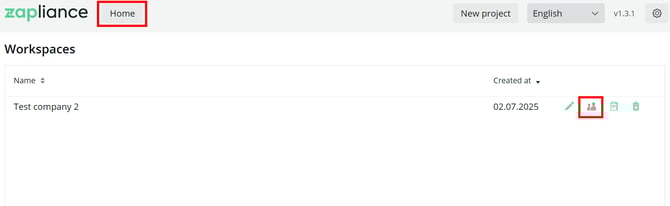
- Go to Home in the top navigation tab of zapAnalytics. You will see an overview of all your workspaces that can be assigned to other users.
- On the right side of each workspace entry, you will see user management icon. Click on this icon to manage users for the workspace.
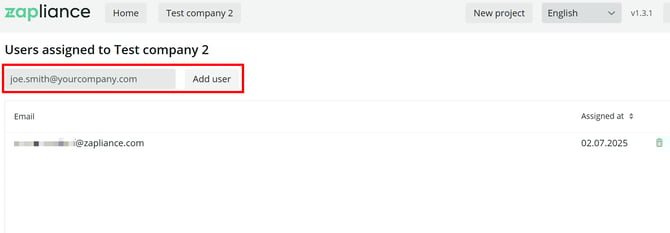
In the window that appears, you can add another user who will be granted access to the workspace.
- Enter the email address that the user registered with in zapAnalytics and add the user.
- After adding, the new user will appear in the list of users for this workspace and will have access to all projects within it.
Important: Workspace names are set by zapliance based on the content bundle and can currently not be changed. If you experience any issues or if the assignment does not work as expected, please contact your Customer Success Manager or submit a support ticket.