
With LibreChat, you can easily collaborate with chat agent Wilma and create your own workflows. This guide will take you step by step through the most important functions of LibreChat.
1. User Registration
Create a New User
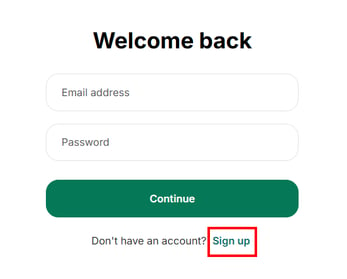
To register a new user in Wilma, open your Wilma instance in your browser and click on "Sign up" at the login screen. Enter your business email address and choose a secure password, then click "Continue" to create your account. Once registration is complete, you can log in with your new credentials.
Login with Single Sign-On (SSO)
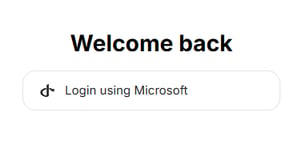
For enterprise users, Single Sign-On (SSO) with Microsoft/Azure Entra is recommended or may be required by your organization’s security policies. Please check with your IT admin if SSO needs to be set up.
2. Navigation
Collapse and Expand Taskbar
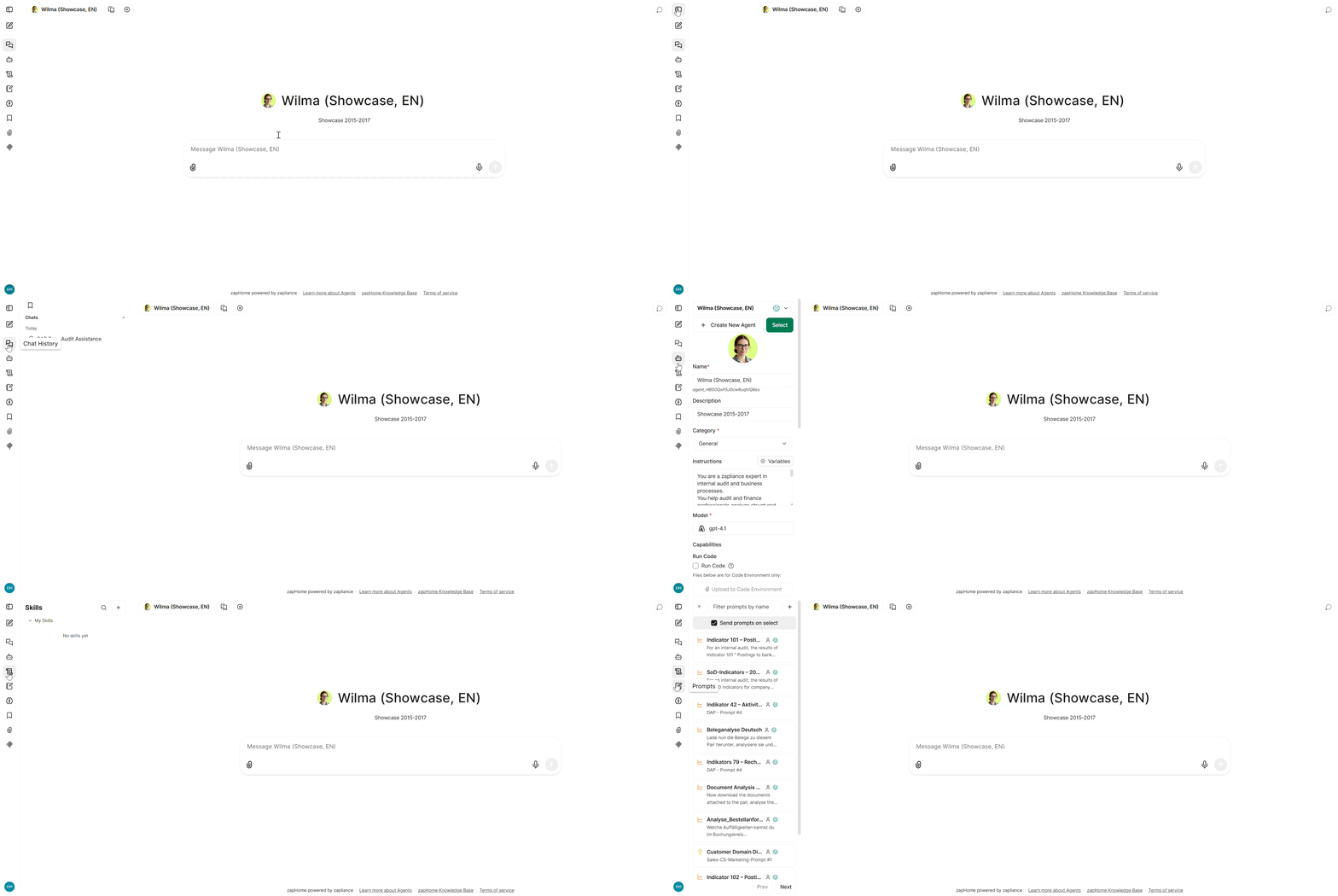
To give you more space for your chats, you can collapse or expand the taskbar on the left edge. Simply click the menu icon at the top left. This way, you can flexibly adjust the view to your needs.
Start a New Chat
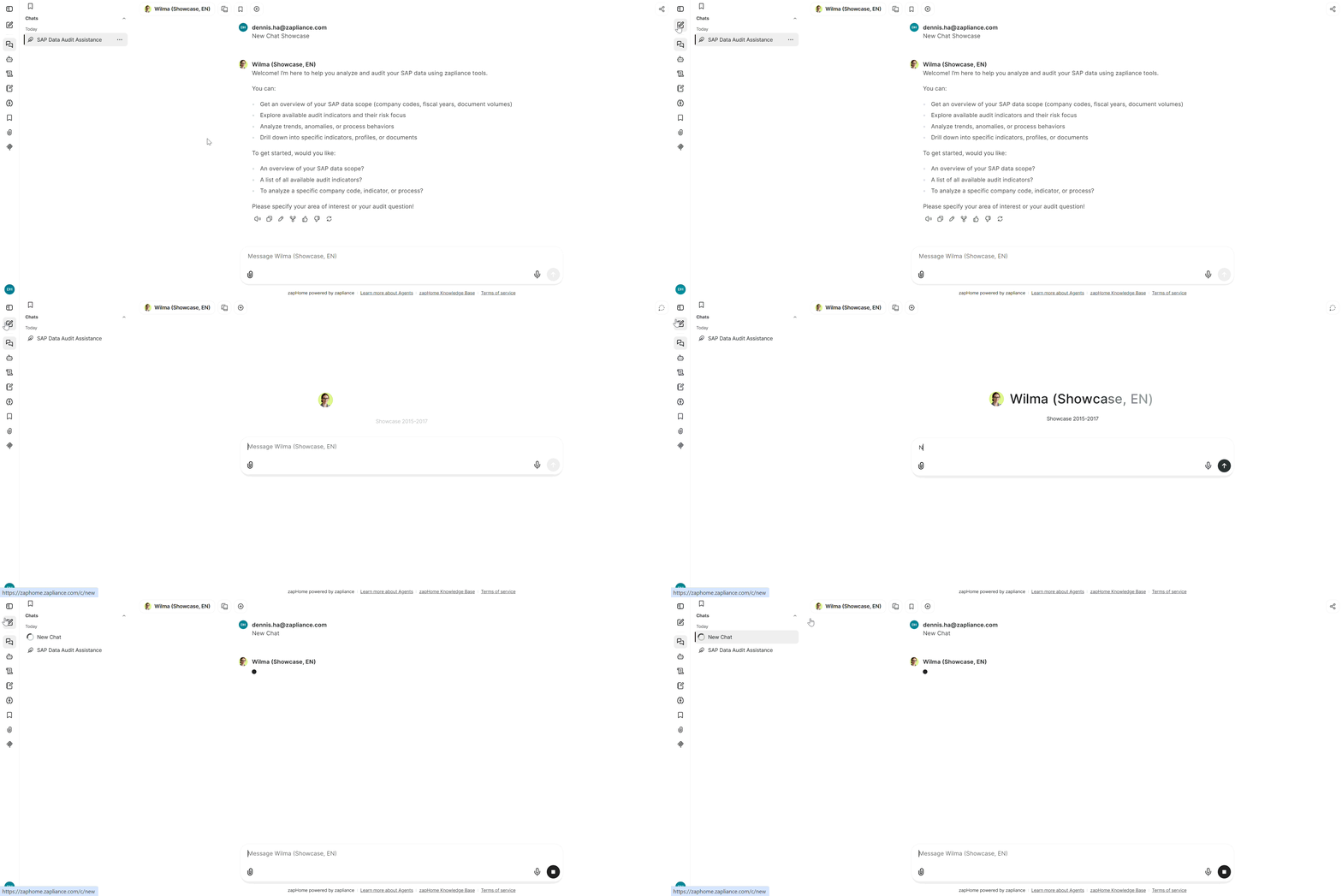
To start a new chat, click the “New Chat” icon, usually displayed as a plus sign. You’ll immediately receive a new chat window where you can enter your request. This allows you to conduct multiple conversations with different agents in parallel.
View Chat History
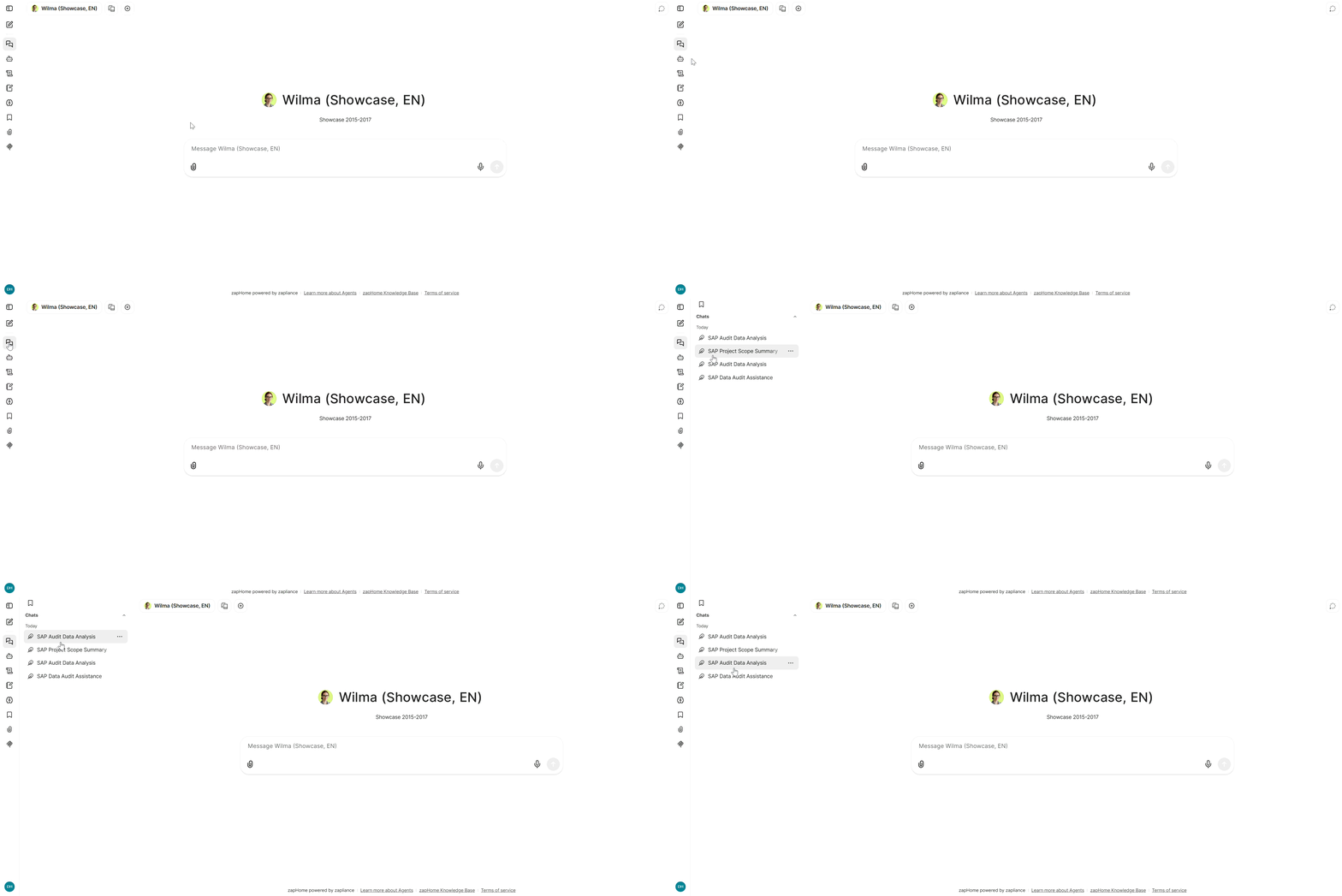
Your entire chat history is automatically saved and clearly listed in the taskbar. You can access previous conversations at any time and continue directly in an existing conversation. This makes it easier to track requests and discussions.
3. Chat Agents
Create and Edit Chat Agents
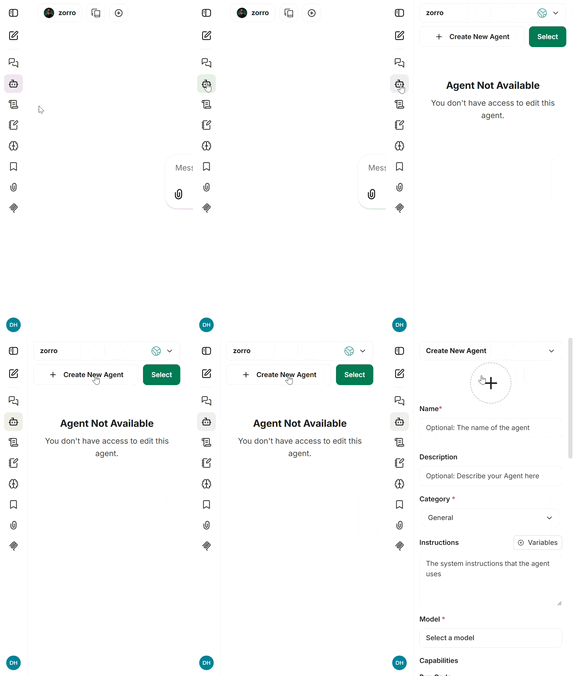
You can create your own chat agents or modify existing agents. To do so, select the “Chat Agents” area in the taskbar and click “Create Agent” or select an existing agent to edit. This allows you to design agents according to your requirements.
Chat Agents Profile: Adjust System Instructions
Each agent can be equipped with its own instructions/system instructions, which controls the agent’s behavior. In the editor, you enter instructions on how the agent should respond to messages. This allows you to customize your agent’s responses and personality.
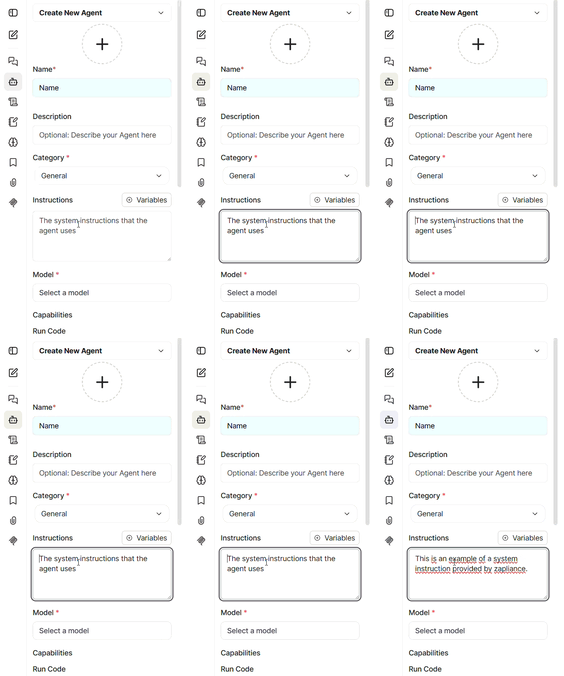
For each zapliance Agent, your Customer Success contact person will provide you with the specific system instruction.
Upload File Context
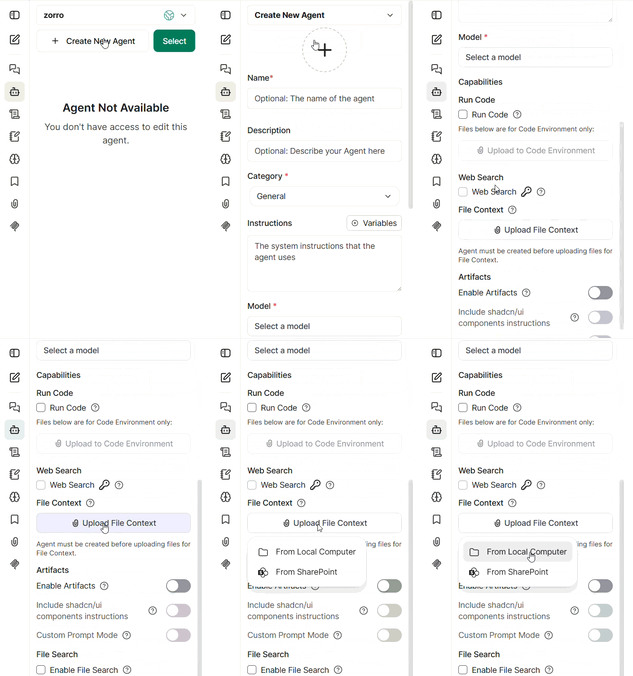
In the agent editor, upload a “File Context” so that the agent can access the information contained in the file. If a file is uploaded here, the agent will primarily use the information from this file for its analysis. If no file is provided, the agent is free to obtain the information from other sources.
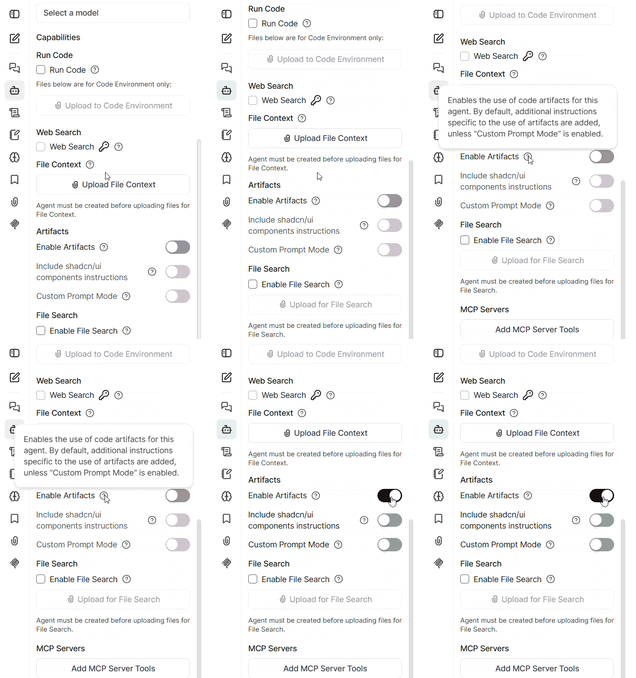
Enable Artifacts
To allow the Chat Agent to include tables, lists, or other formatted content in its responses, you need to enable this feature.
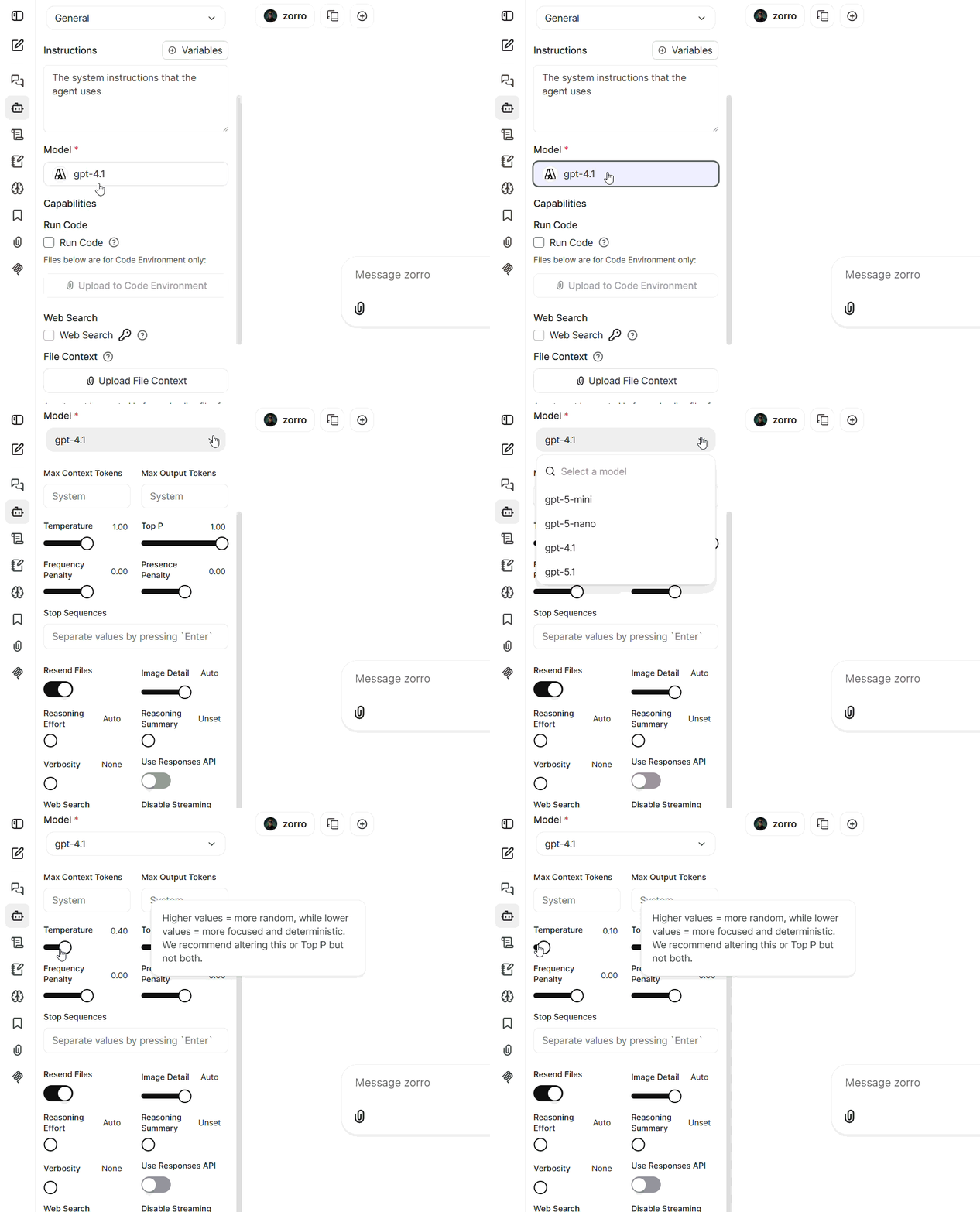
Choose an AI Model
In chat agent settings, you’ll find the "Set Model" option, which allows you to choose your desired AI model. Your zapliance Customer Success Manager will instruct you during the onboarding process on which model and parameters (e.g., Temperature) should be used to achieve the best results for your project.
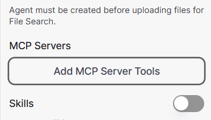
Select MCP Server Tool
To connect your project data in LibreChat, go to the agent settings and select your desired MCP server tool. This will allow the chat agent to communicate with the project data of your other zapliance Agents (Wolfgang, Werner, or Wickie). If you do not see any available MCP server tool after running zapAnalytics, please contact your zapliance Customer Success Manager.
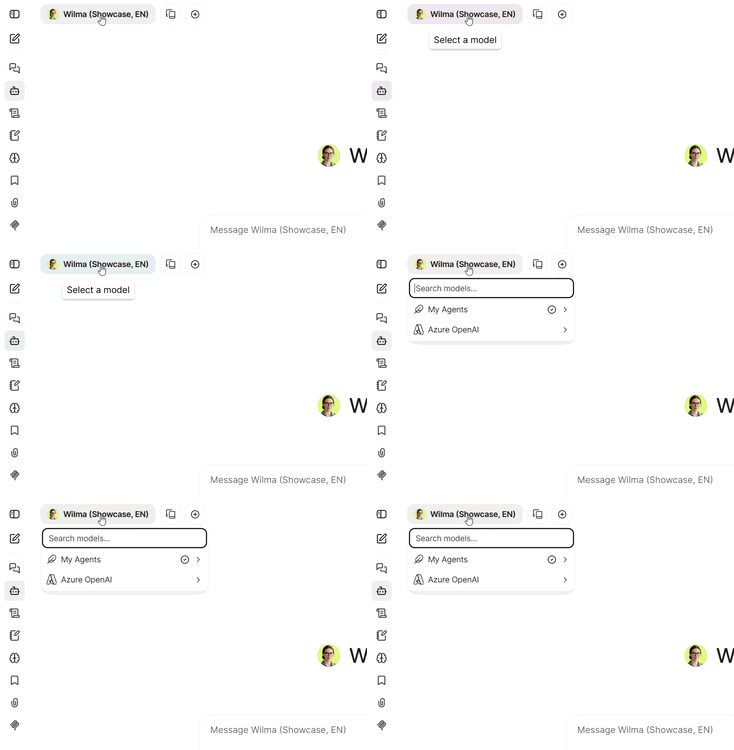
Select Chat Agents
Before starting a new chat, you can select the appropriate agent from a list. Each agent specializes in certain topics, tasks or even date scope. This ensures you always chat with the right agent.
4. Prompts Overview
Create, Edit and Delete Prompts
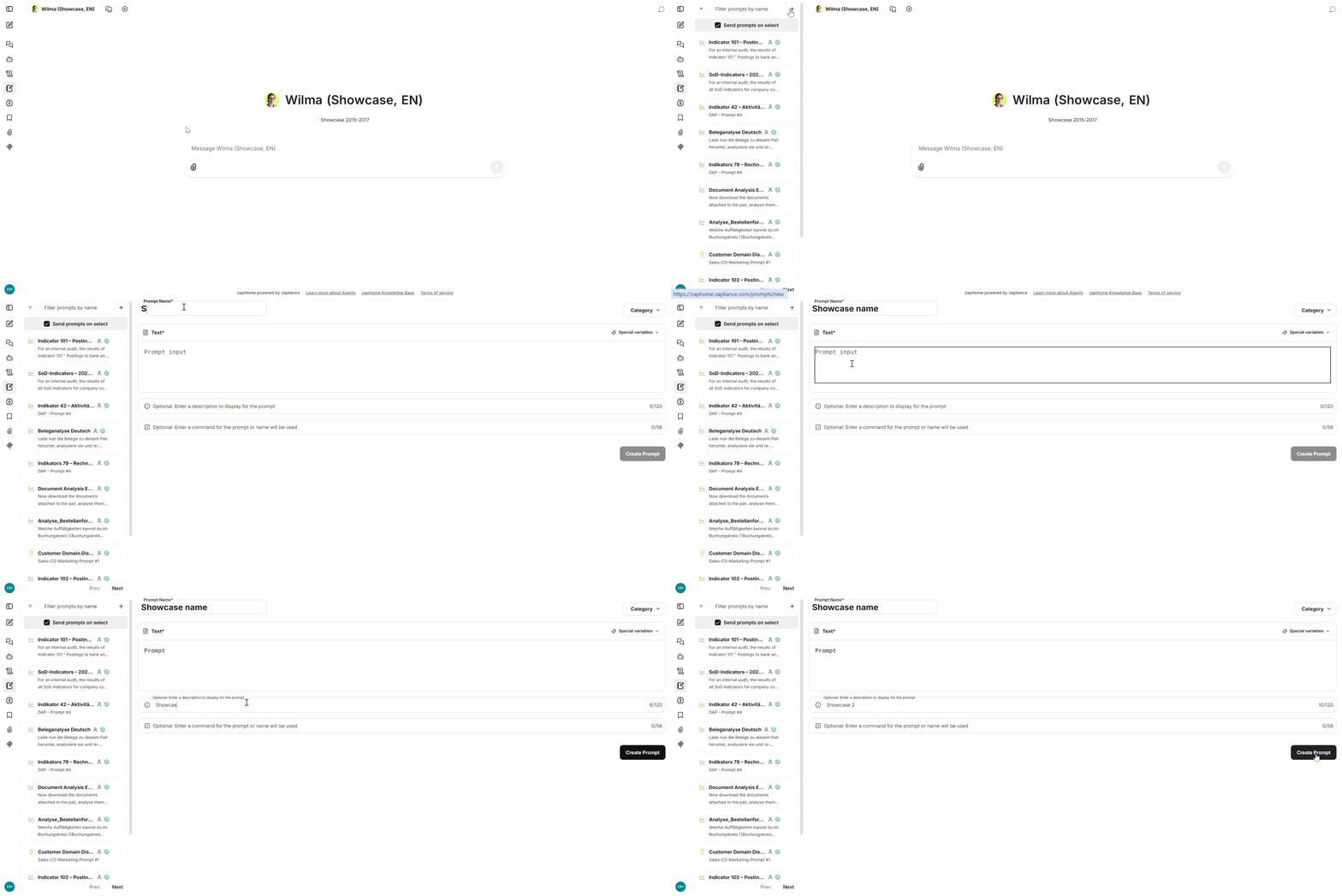
In each agent, you can store your own prompts—predefined questions or instructions. Go to the “Prompts” section in the agent editor and create a new prompt. This saves you time and improves the quality of responses.
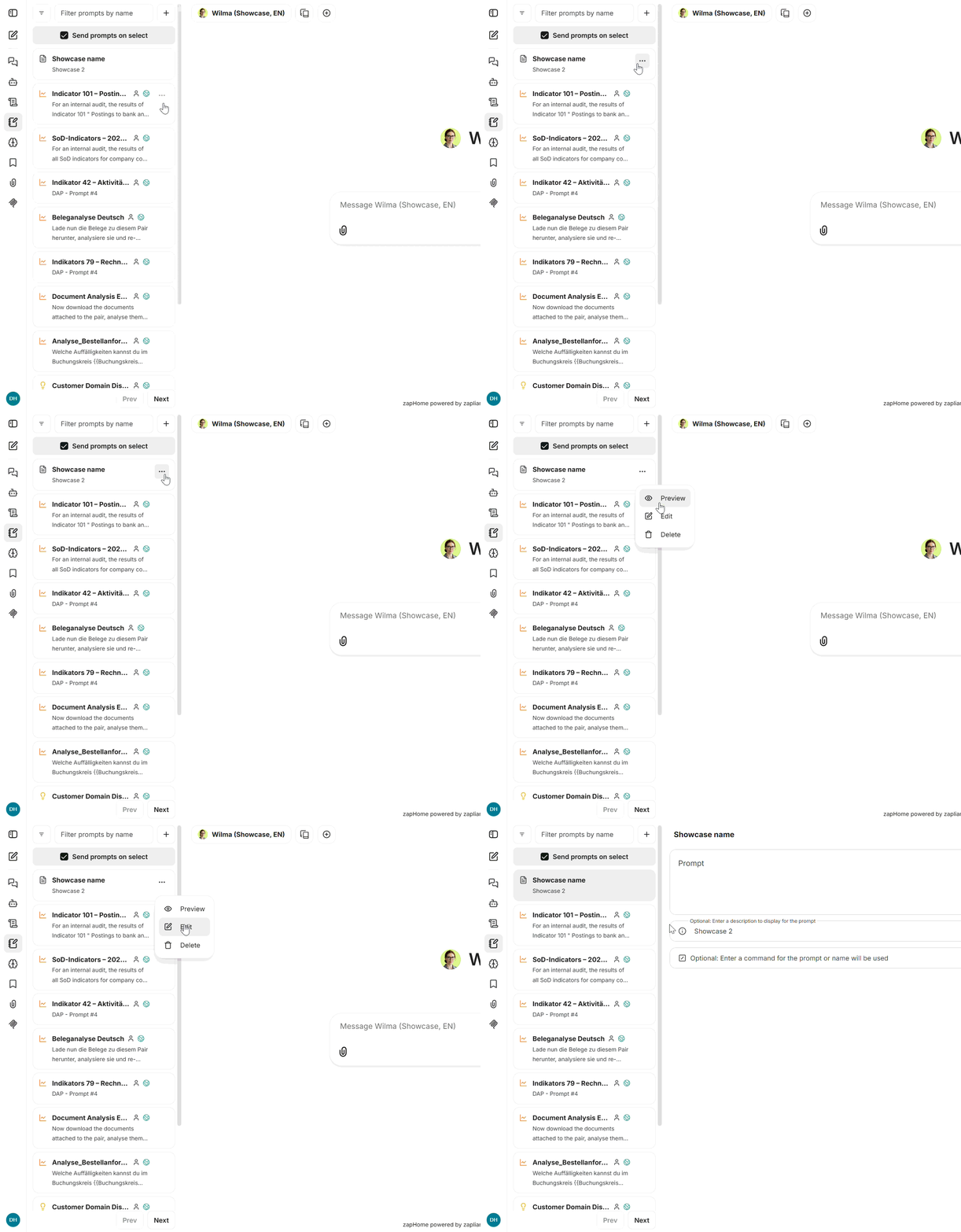
To preview, edit or delete an existing prompt, select the "..." menu.
Share Prompts with Everyone
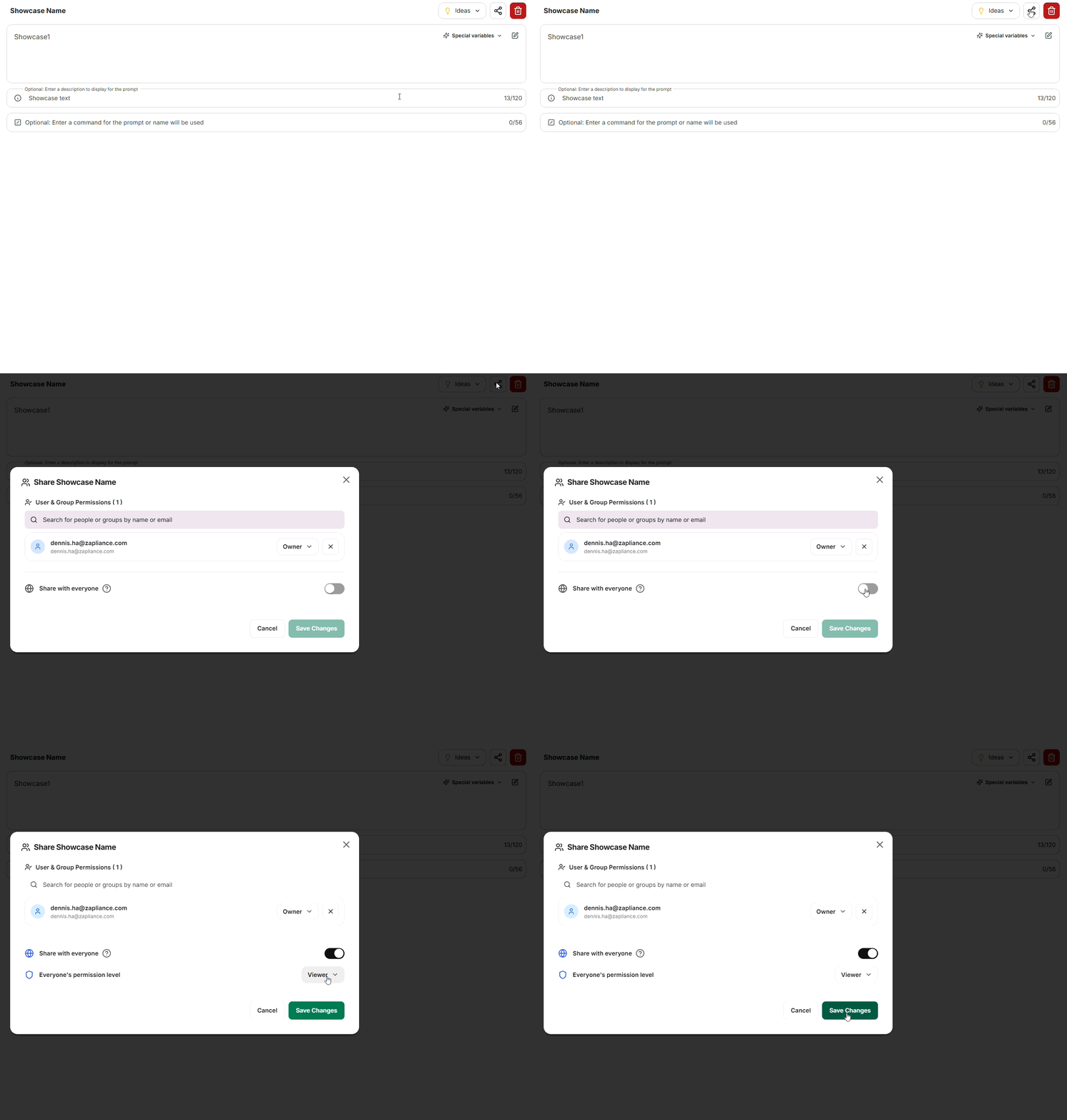
You have the option to share your created prompts with other team members. To do this, edit your prompt and click on the sharing icon at the top right. Next, enable the option to share with everyone and set the appropriate permission level. This way, all team members can benefit from helpful templates and best practices.
Tips and Notes Creating Prompts
Make sure to phrase prompts clearly and unambiguously so the chat agent can help you precisely. Try different formulations to achieve the best results. Use short, concise sentences and avoid ambiguous terms.
Best Practice Prompt Example: Please create a table listing all indicators with hits for company code 2000 in fiscal year 2023. The table should include the following columns: Indicator ID, Indicator Name, Number of Hits, Relevance (yes/no), and a brief justification for the relevance assessment. Only consider manual and semi-automated postings, and exclude technical or system-generated entries. If possible, sort the table by the number of hits in descending order.
Using Variables in a Prompt
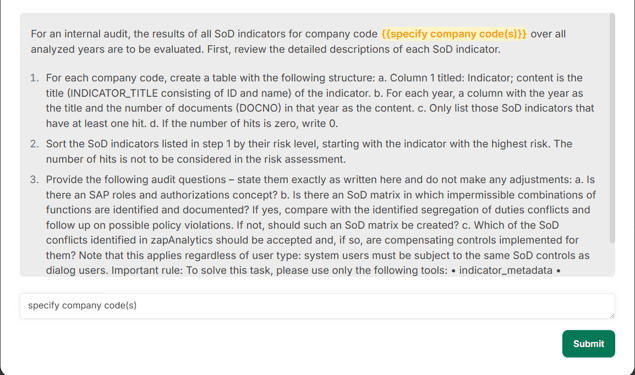
When creating a prompt in the prompt library, you can define variables by placing them in double curly brackets, like . Each time you use the prompt, you will be asked to fill in these variables. Using variables allows you to reuse a single prompt for different parameters, so you don’t need to save a separate prompt for each analysis.
5. Error Analysis
Download Chat Log
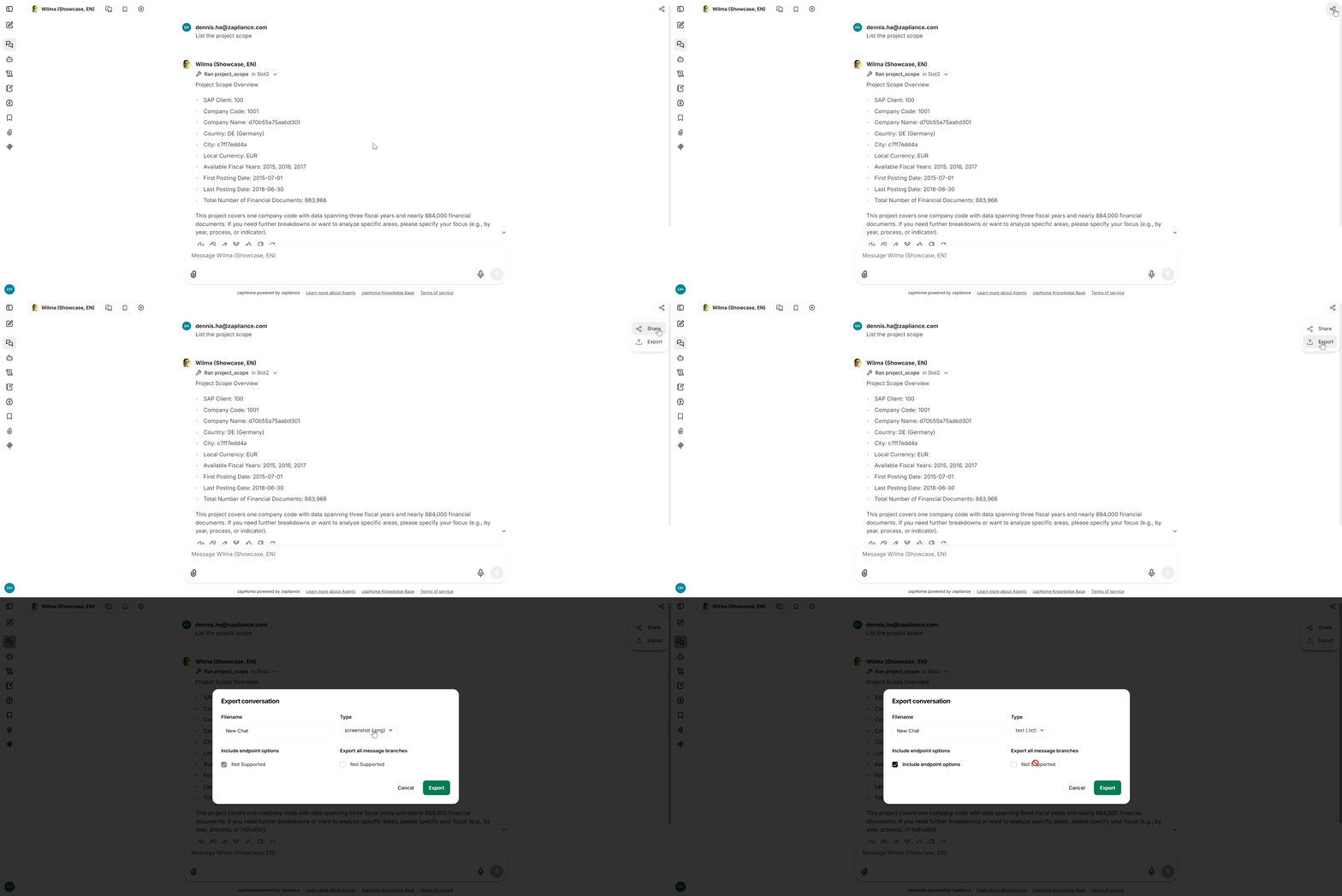
If an error occurs, you can download chat logs and SQL statements. These help you or the support team to quickly analyze and resolve problems. Simply click the download icon in the editor area and select the type "text.txt".
Help & Support
If you have any questions about any of the steps or need assistance, please contact the zapliance team.