
Welcome to our detailed step-by-step guide for Power BI Desktop. Here you will learn how to navigate reports, conduct your own analyses, and export your results of Wolfgang and Werner.
- Navigation and basic functions
- Using interactive tables and charts
- Export and Publishing
- Tips for operation
1. Navigation and Basic Functions
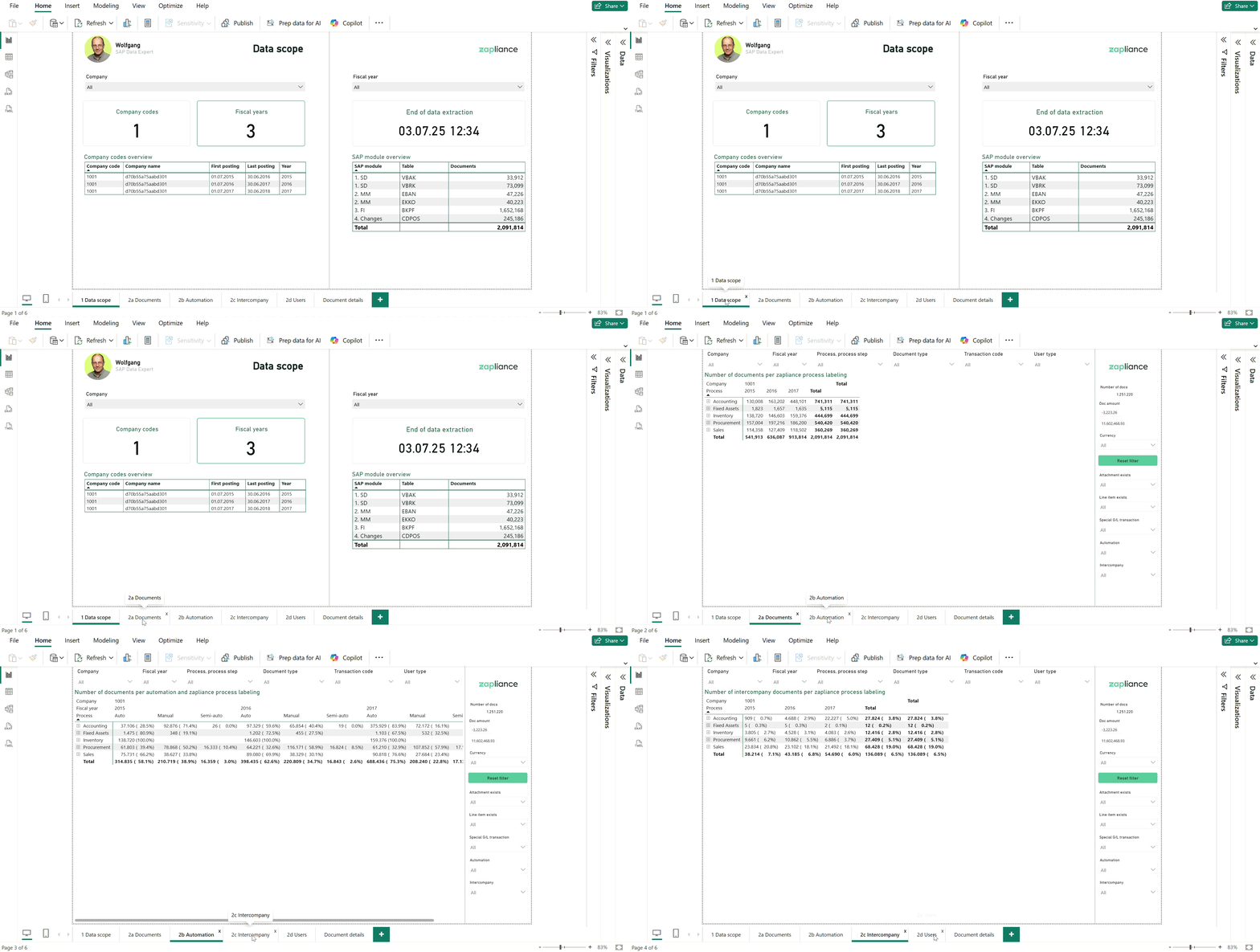
Switching between tabs and pages
At the bottom of the Power BI window, you will find the different pages of your report, for example, "Data Scope", "Automation", or "Document Details".
Simply click on the desired tab to switch to that page. This allows you to view your data from different perspectives.
Using filters and slicers
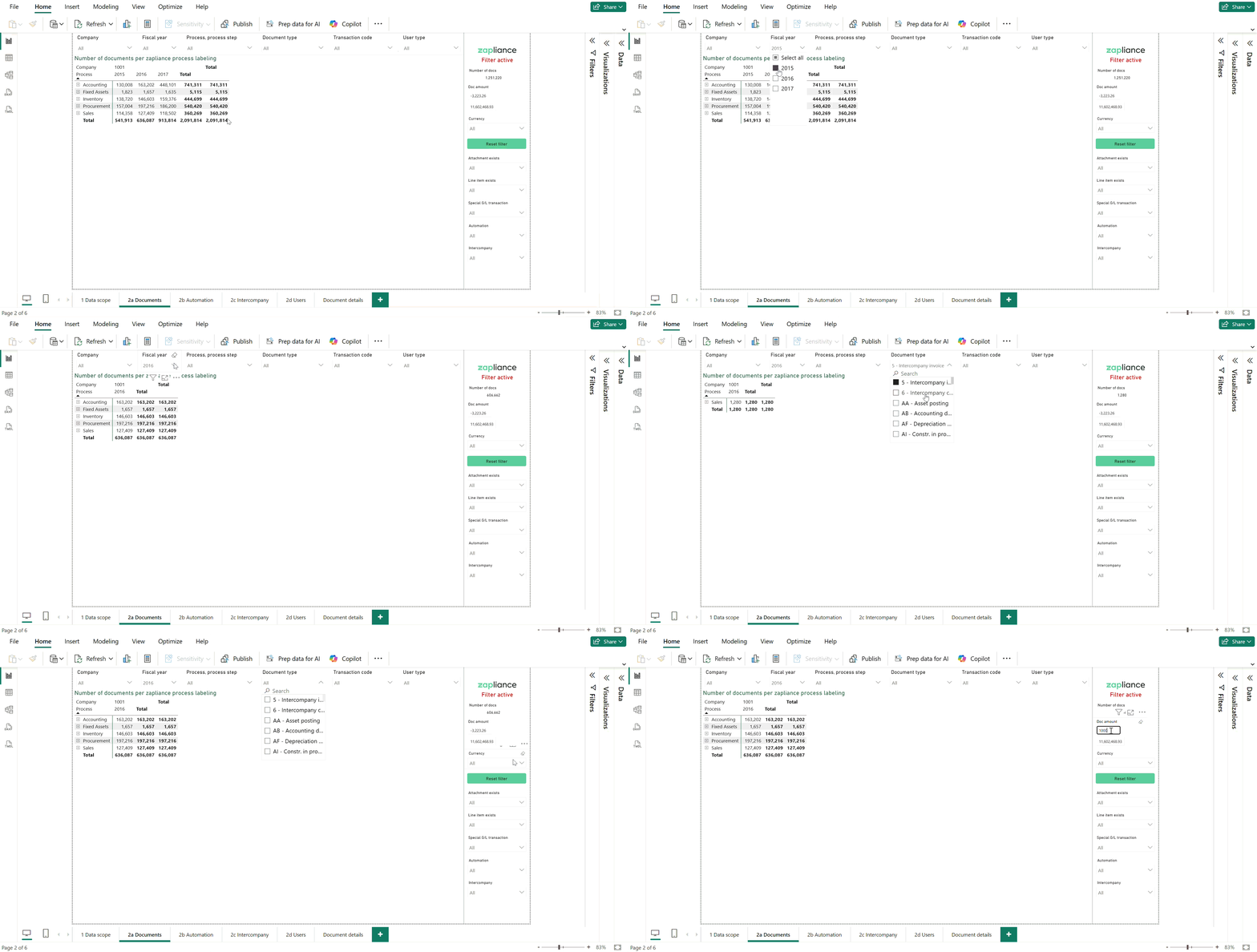
With so-called slicers or filters, you can restrict the displayed data according to specific criteria, such as time period, company code, or document type. You can set multiple filters at the same time.
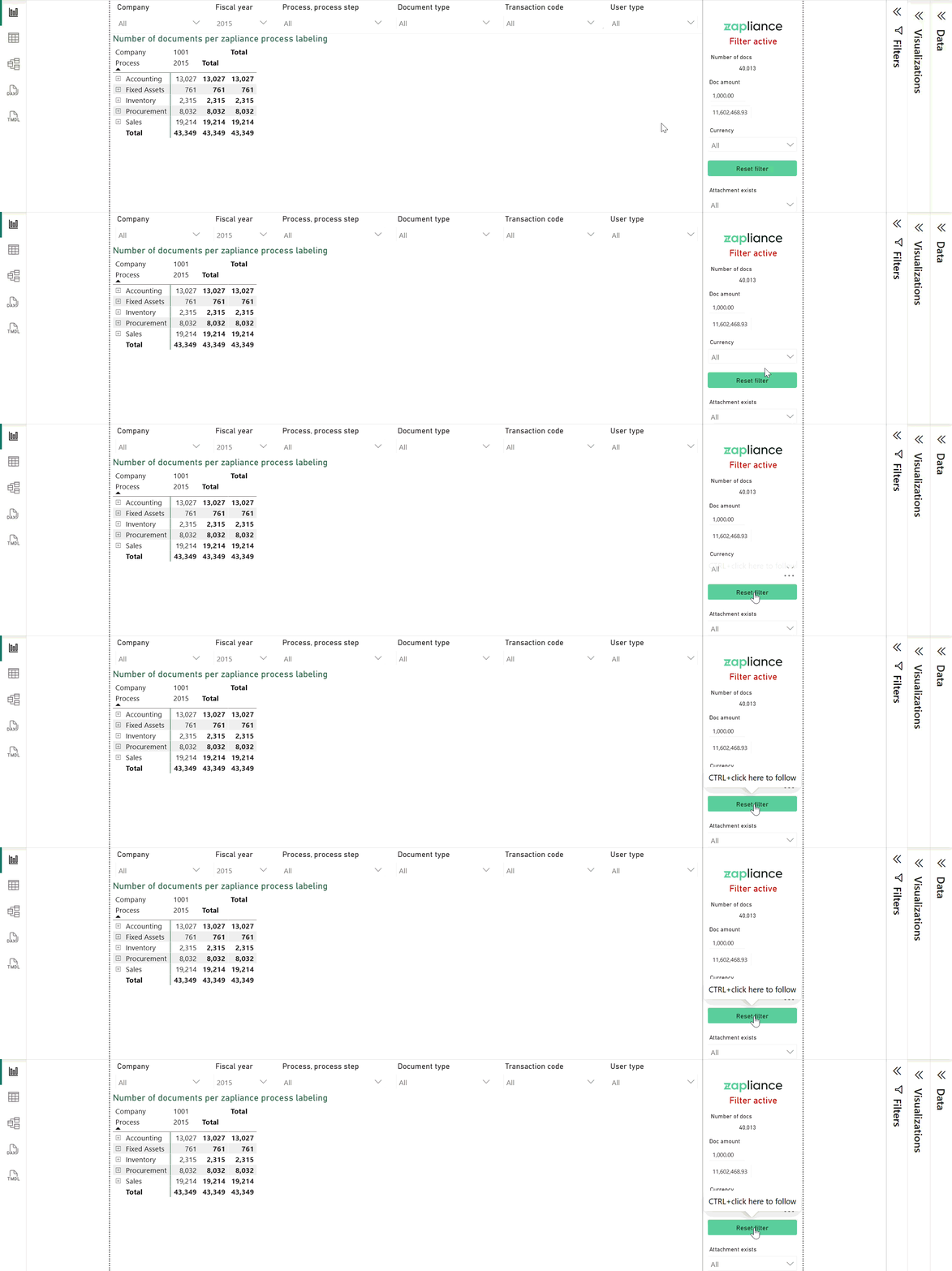
To reset all filters, click on the "Reset Filter" button while holding CTRL + left mouse button.
Using interactive tables and charts
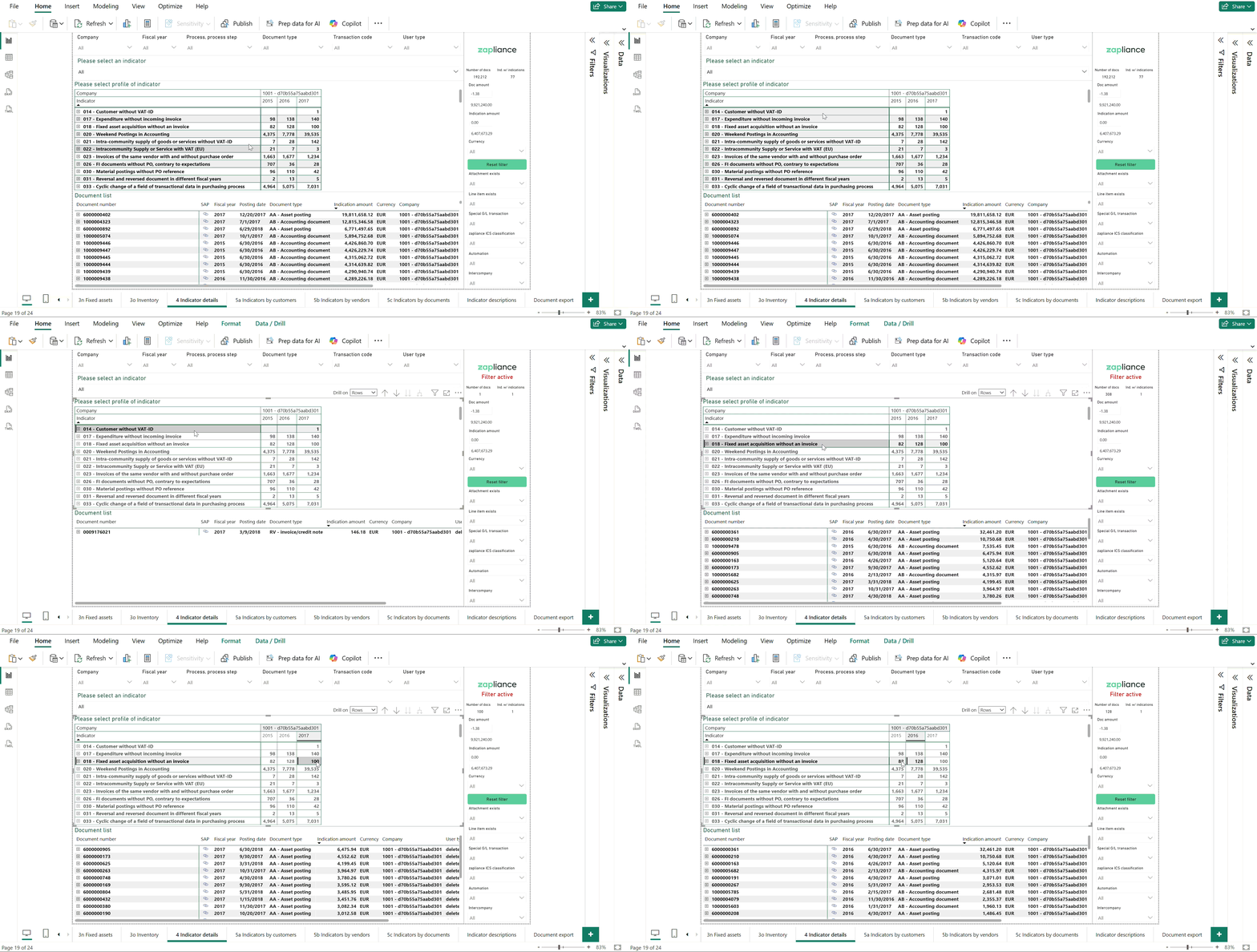
Tables and charts in Power BI are interactive. This means: for example, if you click on a specific row in a table or on a bar in a chart, all other visualizations are adjusted accordingly. This allows you to dive into the details of your data in a targeted manner.
2. Own Analyses and Customizations
Customizing visualizations
You can customize any visualization (i.e., table or chart) as you wish. Click on the desired visualization with the mouse so that it is selected. On the right, you will now see the areas "Data" (here you select which fields are displayed) and "Visualization" (here you select the chart type). You can drag and drop fields into or out of the visualization.
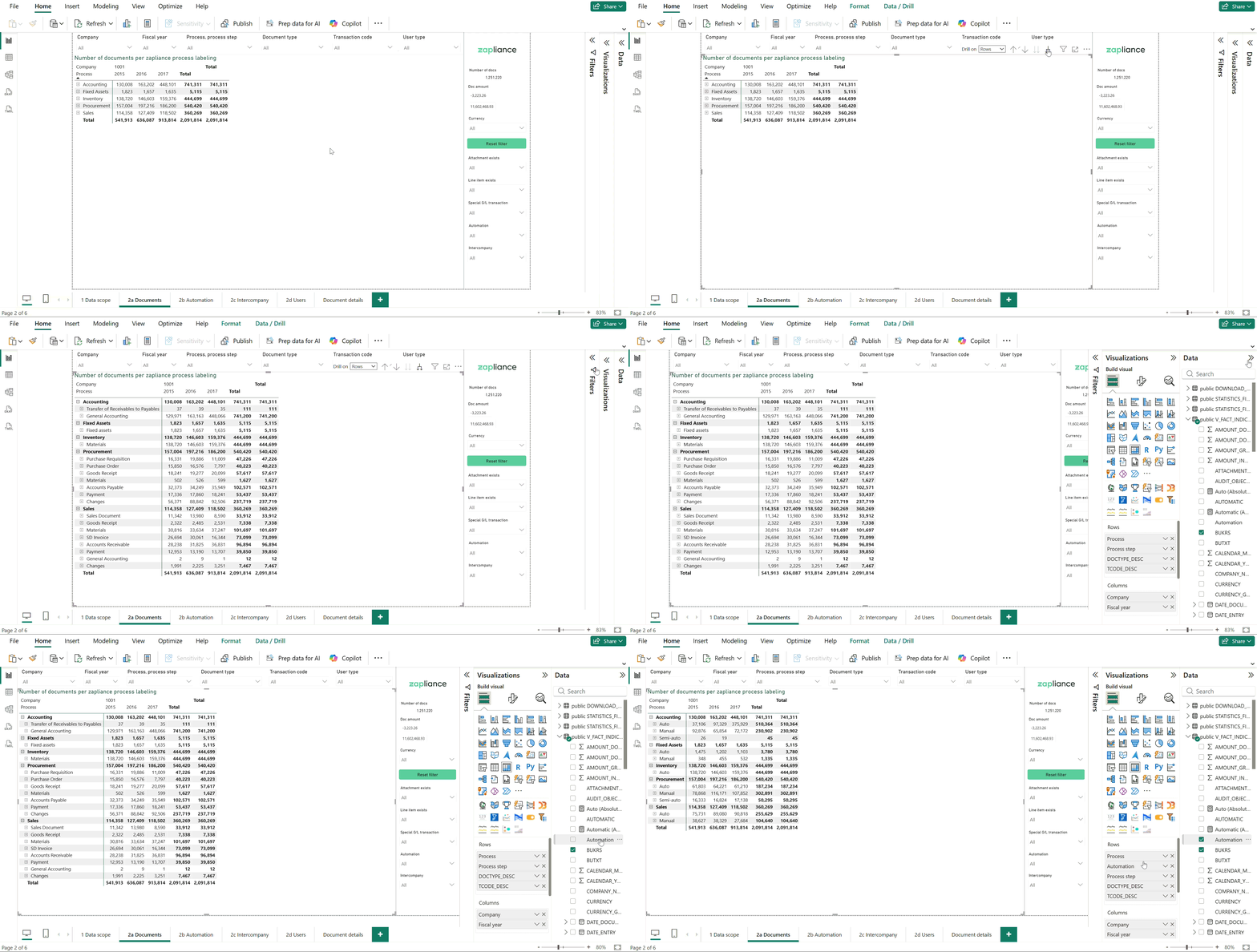
Duplicating pages
To copy a report page, right-click on the desired tab at the bottom and select "Duplicate". This allows you to use a page as a template and test your own customizations without changing the original.

Publishing the report
To share your report with others, click the "Publish" button at the top right. In the dialog box, select the workspace (e.g., "My Workspace") to which your report should be uploaded. This function is only available with a Power BI Pro license.
After publishing, you can open and share the report in the Power BI Service (online).
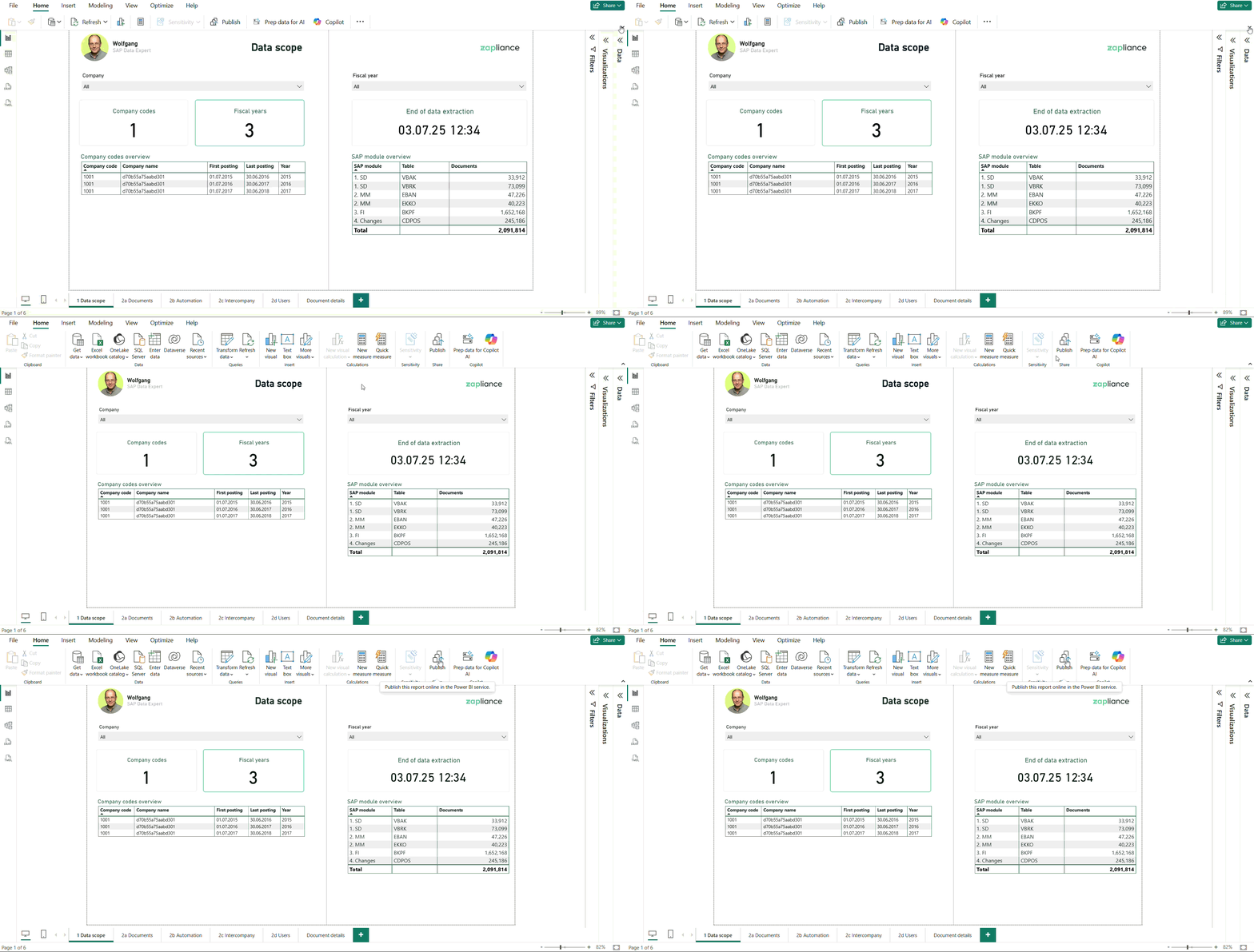
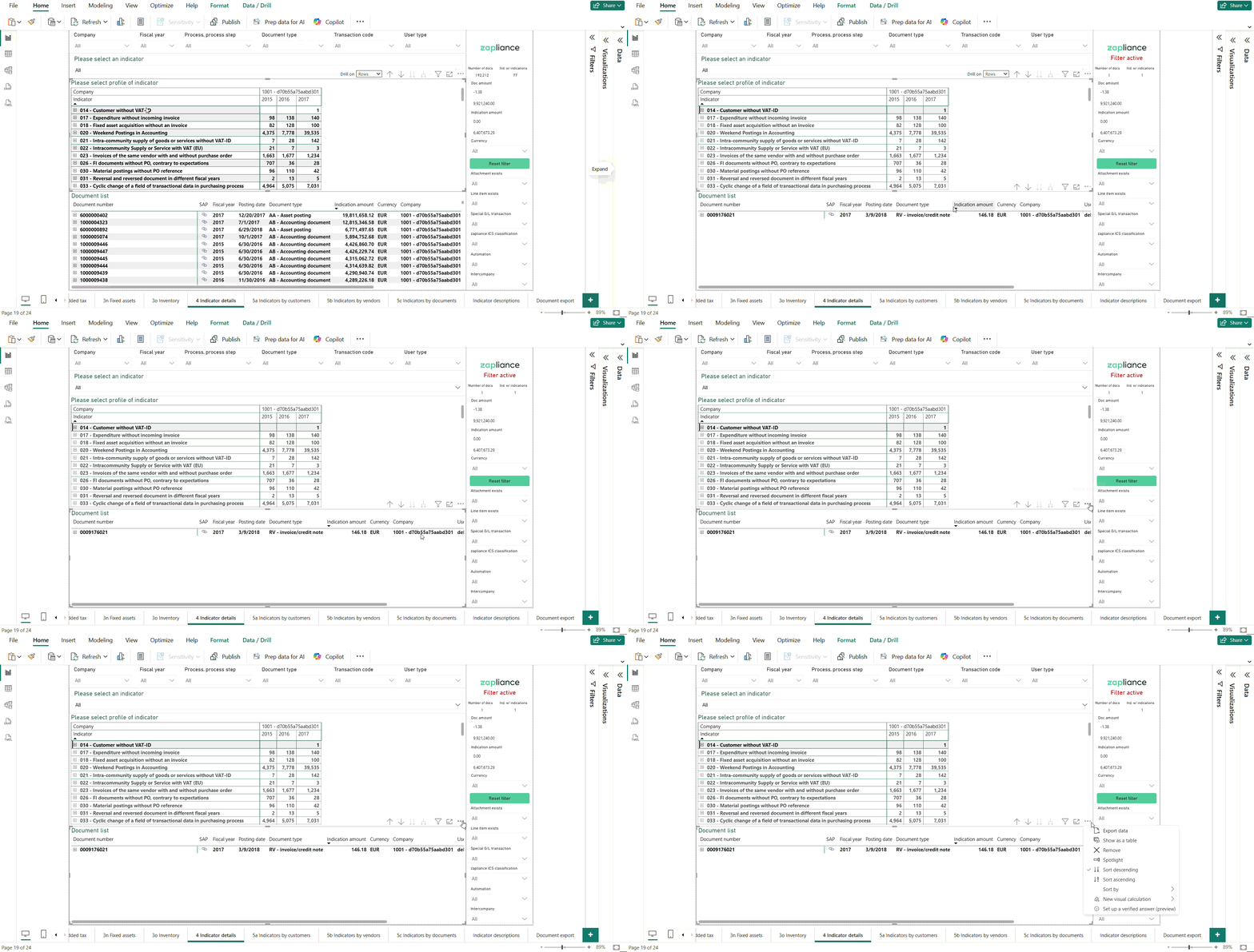
Exporting data
Click on the three dots ("...") at the top right of the desired visualization. Select "Export data".
Note: In the desktop version, export is usually only possible as a CSV file.
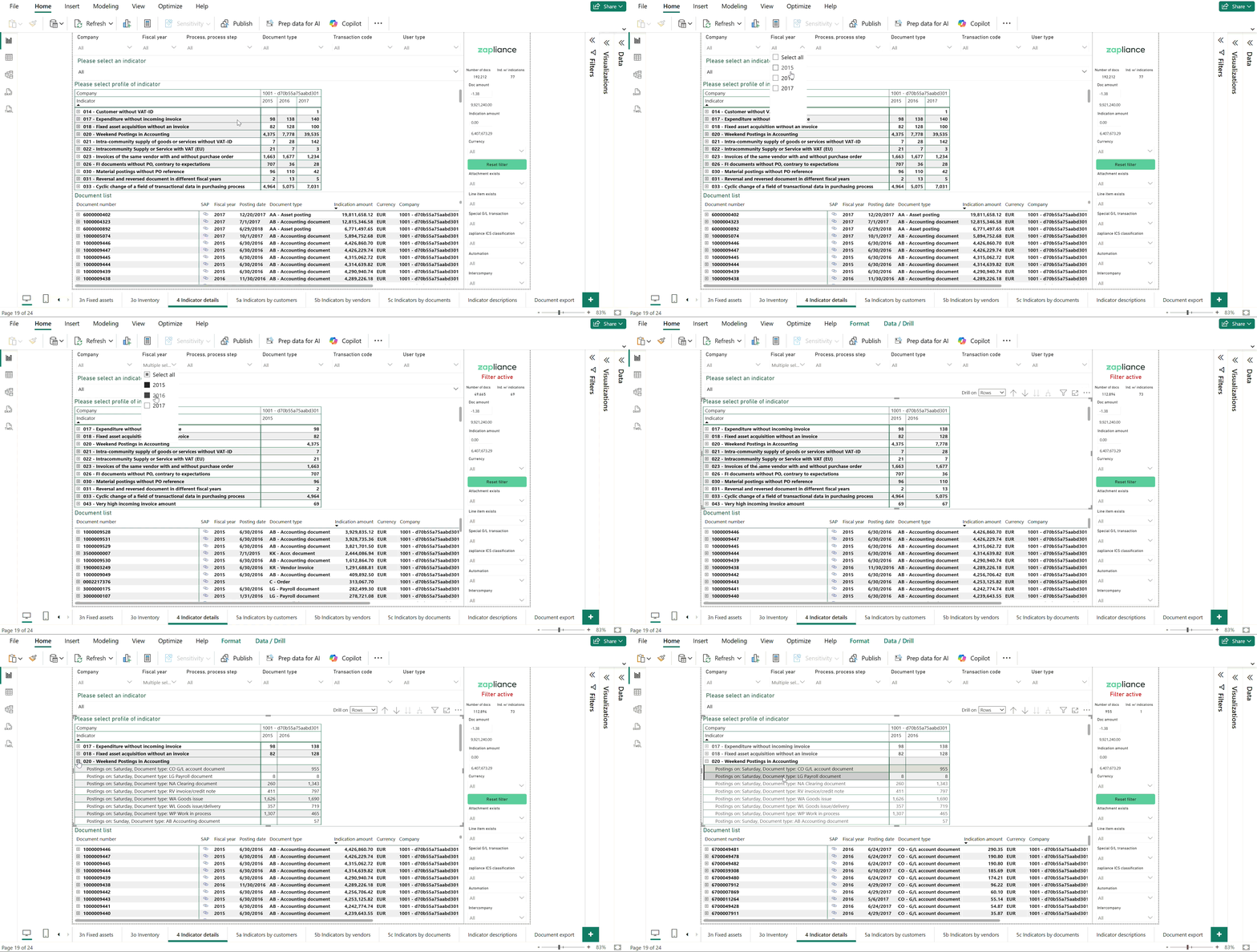
Hold down the CTRL key on your keyboard to select multiple values in a filter at the same time. This is especially useful if you want to compare multiple company codes, indicators or time periods, for example.
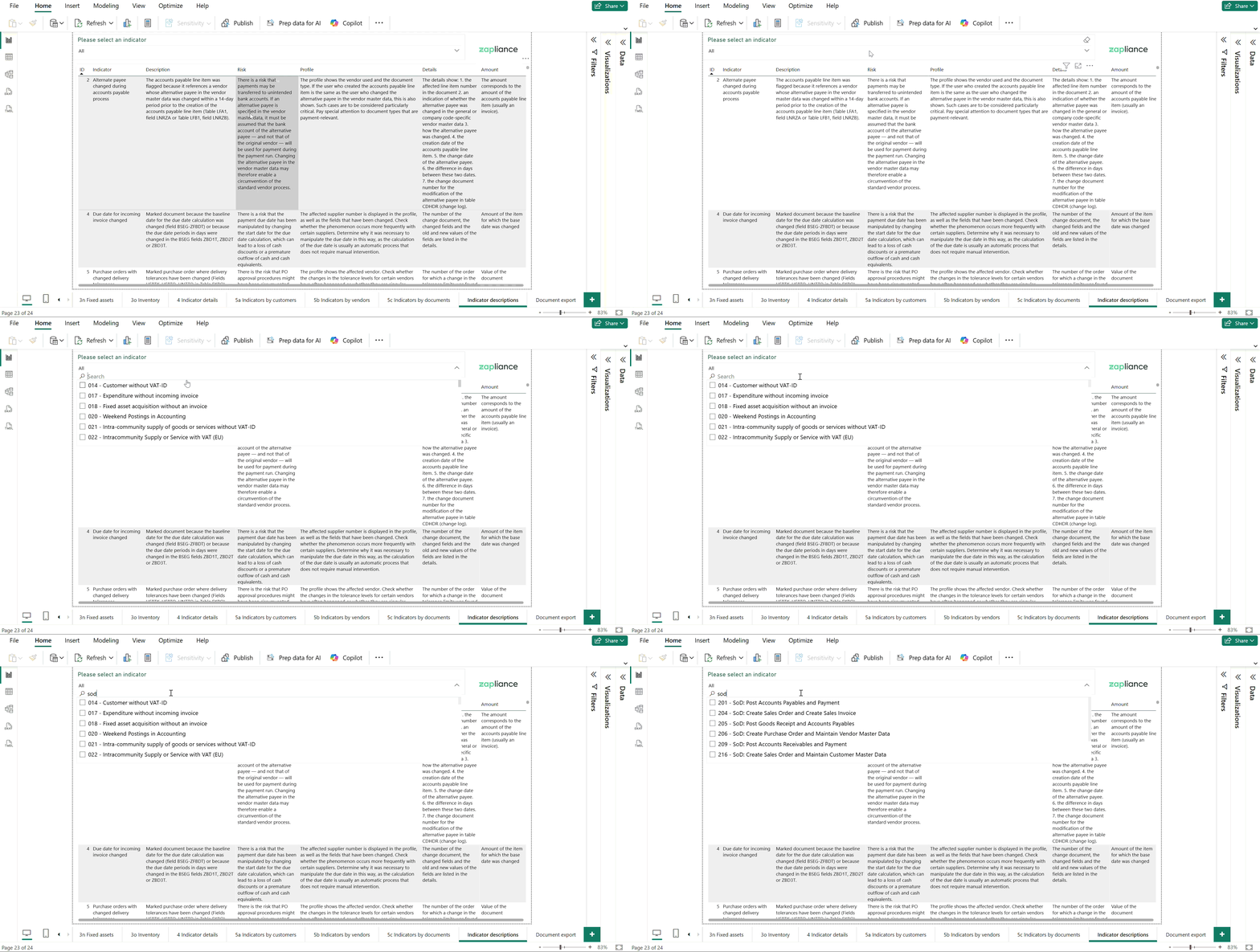
Using the search function in filters
In many slicers and filters, you will find a search field. Here you can enter terms to specifically search for certain entries – this saves time when the list is long.
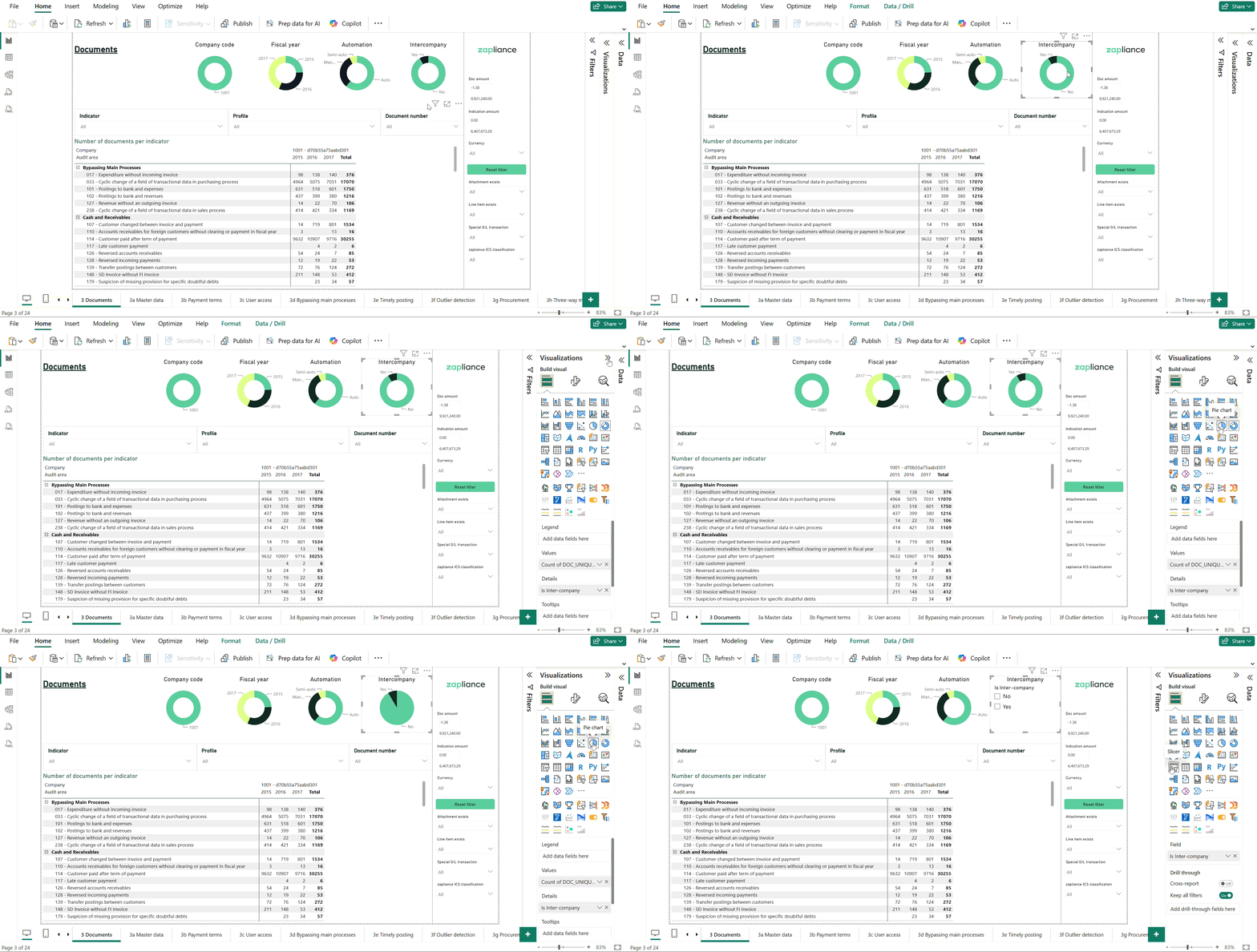
Changing the visualization type
You can change the type of your visualization at any time – for example, from a table to a pie chart. First, select the visualization and then choose the desired chart icon in the "Visualization" area.
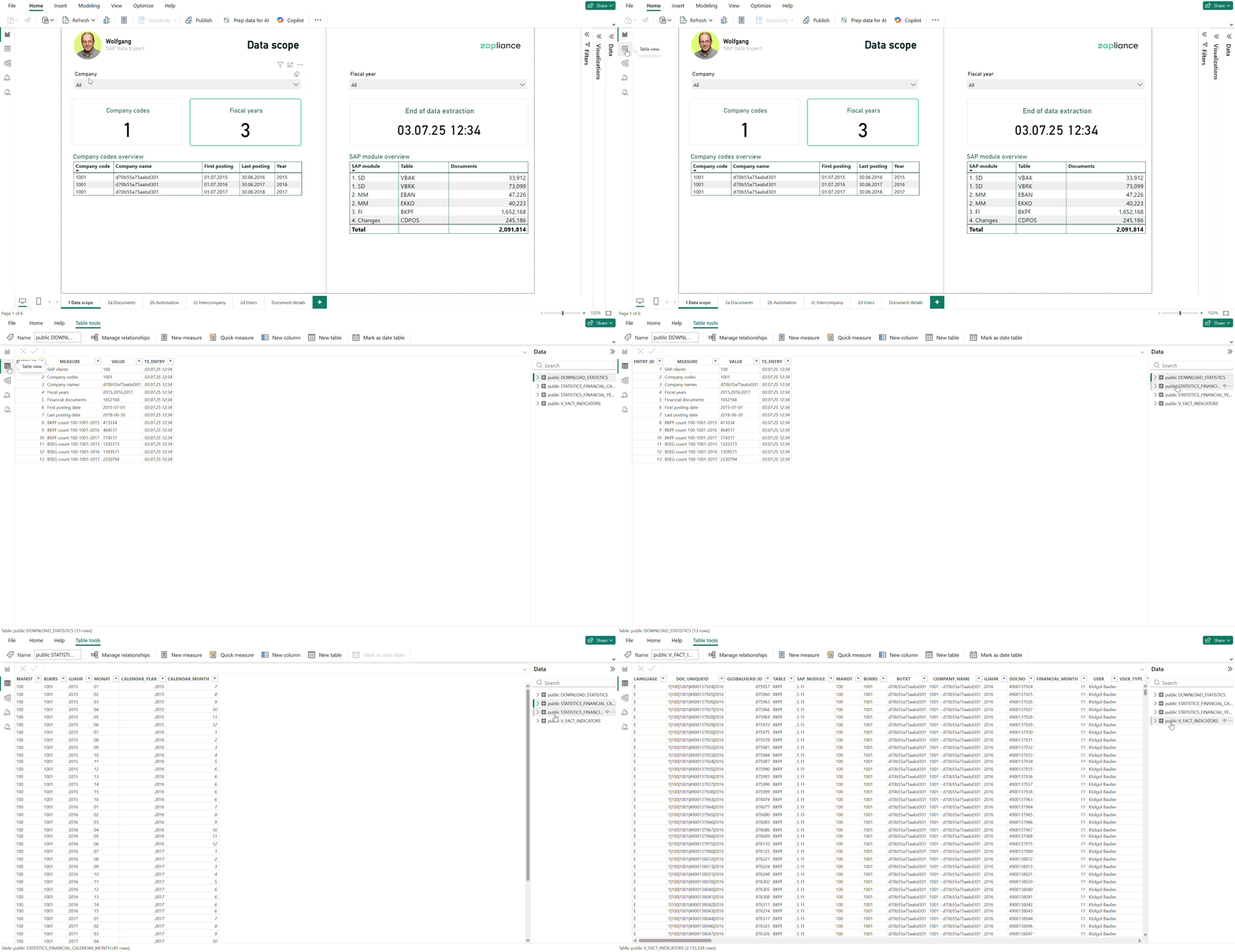
Viewing the data model
On the left, you will find the icon with a grid("Table view"). If you click on it, you will see the underlying data – that is, all tables and fields that can be used in your report.
Further assistance
If you have any questions about any of the steps or need support, please contact the zapliance team.