
Note: This guide describes the local deployment using Docker Desktop on a Windows notebook.
It is intended exclusively for small Proof of Value (PoV) projects and must be discussed with zapliance in advance.
The setup described here is not a Windows Server deployment.
General Information about Docker
Docker is a platform that enables software applications to be packaged and executed within containers. A container bundles the complete application together with all required files, libraries, and configuration settings. This approach ensures that the application operates consistently and reliably across different systems, independent of the underlying infrastructure.
To run containers, Docker images are used. These are standardized templates and are provided by zapliance via the Docker Hub repository. From there, they are fetched by your Docker Desktop instance.
Licensing and Platform Information
This article focuses on Docker Desktop on Windows as the default setup.
Docker Desktop is free to use for small businesses (fewer than 250 employees AND less than $10 million in annual revenue).
Larger organizations (more than 250 employees OR more than $10 million in annual revenue require a paid Docker Desktop license. For more information, please see the official Docker documentation.
As an alternative, the Docker engine can be run on Linux for free.
Technical Requirements
-
A notebook or workstation needs to be prepared as the host environment. The technical requirements will be discussed with zapliance depending on your project.
-
Internet connection for communication with Docker Hub repository.
-
Allow TCP Port 443 through the firewall for communication with Docker Hub repository to fetch latest application releases.
Installation Guide (Windows)
1. Download Docker Installation Package
To download the software, visit the official Docker website and, under "Download Docker Desktop", choose the appropriate version for your Windows system.
2. Installation Process
-
Run installer: After downloading the installation package, run it on the VM or server.
-
Start installation: Change configuration settings if necessary (note safety information at the bottom of the installer window). Click "OK" to start the installation.
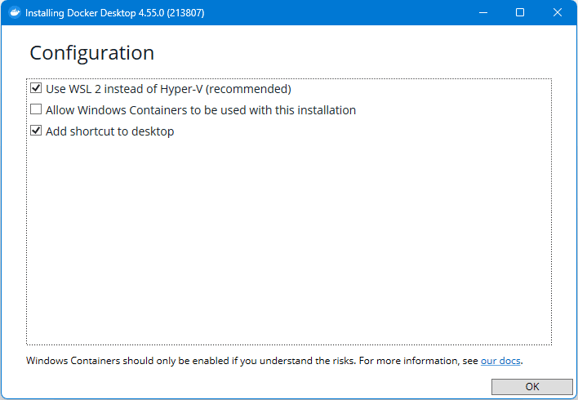
Note: Docker Desktop uses WSL (Windows subsystem for Linux). If not already installed, it will be installed when running the Docker Desktop installer. See the official Docker documentation for more information.
-
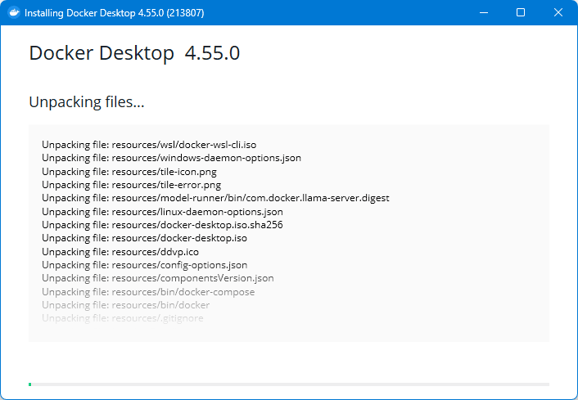
Installation progress: The installation process will start.
-
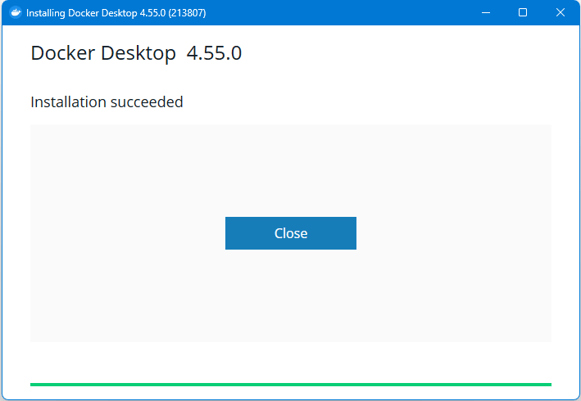
Complete installation: Once the installation has succeded, click "Close".
3. Change Storage Location
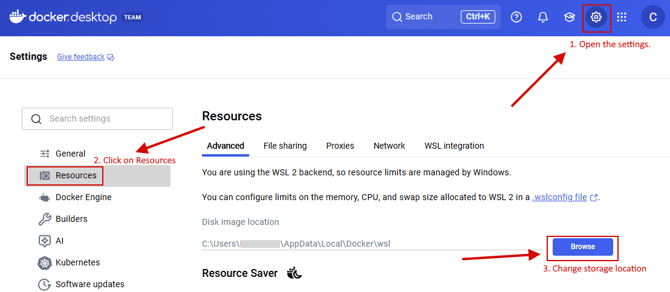
Before the first usage of Docker, you should change the default storage location to a disk that has at least 1TB of free space and is resizable in the future. See Setup Guide zapAnalytics for more information.
-
Open the settings in Docker Desktop (top right corner)
-
Click on "Resources"
-
In the "Advanced" tab, you can select the default storage location. Choose any other disk with suffient free disk space. E.g. D:\docker-wsl
Ready to Run Docker Containers
Now, you are ready to run any Docker image on your system.
See the Basic Docker Commands article to run zapliance software.
Or check the zapAnalytics Docker Guide.