
This guide applies only to customers using zapHome OnPrem Basic, where zapAnalytics is deployed as a standalone Windows application (installed via .exe file). If you encounter startup issues while deploying zapAnalytics as a Docker container, please contact your Customer Success Manager.
This article provides step-by-step guidance if zapAnalytics does not display a page after startup, takes too long to load, or does not redirect you to the login page. Follow the troubleshooting steps below to resolve common startup issues.
After launching zapAnalytics via the startup.bat, the application should automatically open your default internet browser (such as Firefox, Microsoft Edge, or Google Chrome) and display the interface. zapAnalytics is configured to use the default browser for .html files.
- If no browser automatically opens, check your default browser settings or open manually a browser (https://localhost:9007/zapAnalytics/login).
- Even if zapAnalytics does not open in a browser window, the software is likely running in the background.
Infinite Loading on the zapliance Start Page
If, after starting zapAnalytics, you see the zapliance start page but it loads endlessly, you may be stuck on a redirect.
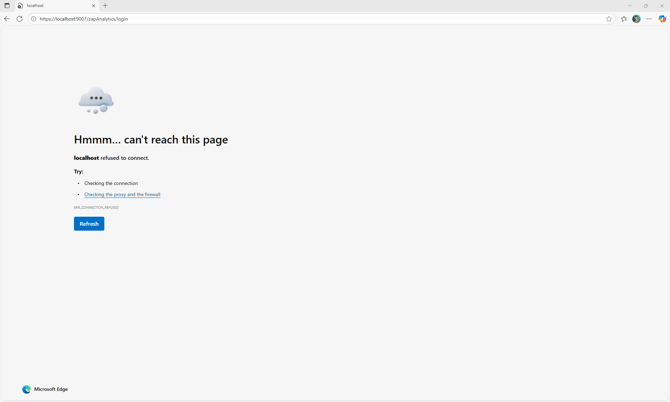
- Try navigating directly to the login page (https://localhost:9007/zapAnalytics/login) in your browser.

If you get redirected or open the login page and encounter an error, it may indicate that the required background processes have not finished starting.
- When starting zapAnalytics (via startup.bat or Windows service), the following processes should run in the background: zapAnalytics platform, OpenJDK platform binary, and PostgreSQL server.
- Depending on your server configuration, these processes may take up to 3 minutes to start. Ensure that any app blockers are disabled.
- You can verify if these processes are running by checking the Task Manager under "Background Processes."
If none of these steps resolve your issue, please contact your Customer Success Manager and provide them with your application log files for further analysis.