
zapAnalytics can be operated in two different ways: Either with Docker on a Linux VM/server or without Docker directly on your Windows system. The procedure for updating zapAnalytics varies depending on which setup you use. This article explains the update process for both methods.
Updating zapAnalytics with Docker
You can use the standard Docker CLI commands to update the zapAnalytics Docker image. The commands are listed in this Knowledge Base article: Basic Docker Commands (Linux)
Updating zapAnalytics without Docker
If you're using zapAnalytics on Windows without Docker, you just need to install the latest version in the same directory where zapAnalytics is currently installed.
Please get in touch with your Customer Success Manager or send an email to support@zapliance.com. We'll provide you with the new installation file.
After receiving the file, you can install the update as follows:
-
- Shut down zapAnalytics via the "shutdown.bat" file in the zapAnalytics folder.
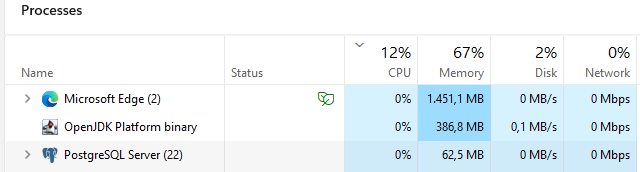
- Open the Task Manager and make sure the core processes are shut down properly:
- "OpenJDK Platform binary"
- "PostgreSQL Server"
- If necessary, close the two processes via the Task Manager.
-
- De-register the software as a Windows service by double-clicking on "deRegisterWindowsService.bat" file.
- Run the new installation file (.exe) provided by zapliance.
- The installer then guides you through the process. A detailed description can be found in this Knowledge Base article: Setup Guide zapAnalytics without Docker
- When choosing the destination folder, select the directory where zapAnalytics is currently installed.
- Register the software as a Windows service again by double-clicking on the "registerWindowsService.bat" file. Then follow the steps described in this Knowledge Base article: Register zapAnalytics as a Windows Service
- Restart zapAnalytics by double-clicking on the "startup.bat" file.
- De-register the software as a Windows service by double-clicking on "deRegisterWindowsService.bat" file.