
Wilma's prompt library is a powerful feature that allows you to save and manage prompts to be used for in-depth SAP data analysis. It eliminates the need to manually reconstruct complex instructions for every new session or copy them from external documents.
Instead, you can simply activate your stored prompts with a single click. This not only saves time but also ensures a consistent quality standard across all your audit activities.
Add prompts to the library
- In an open chat, navigate to the right sidebar and click on the "Prompts" icon.
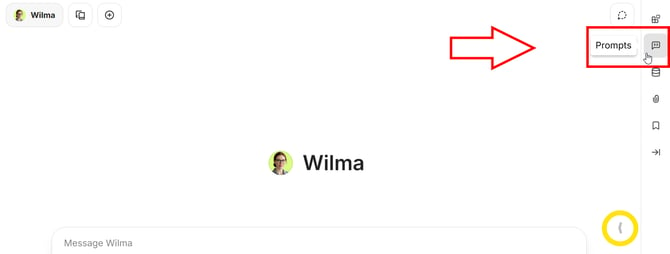
- If you're having trouble finding the tab, try expanding the sidebar by clicking on the arrow in the center-right section of the chat (marked yellow in the screenshot above). It will then show the full labels for each tab.
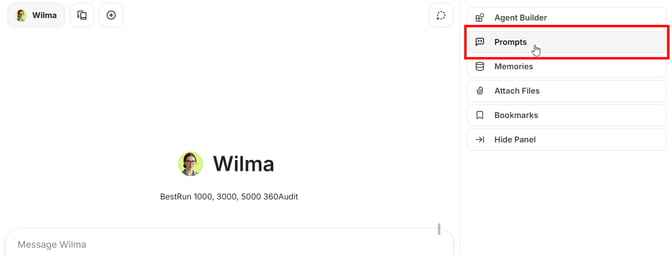
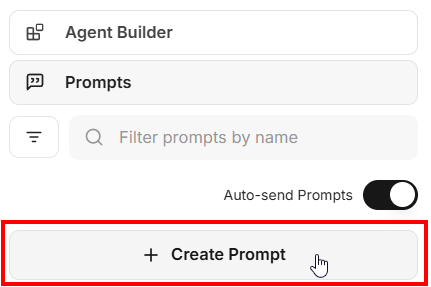
- After opening the Prompts section, click on "Create Prompt".
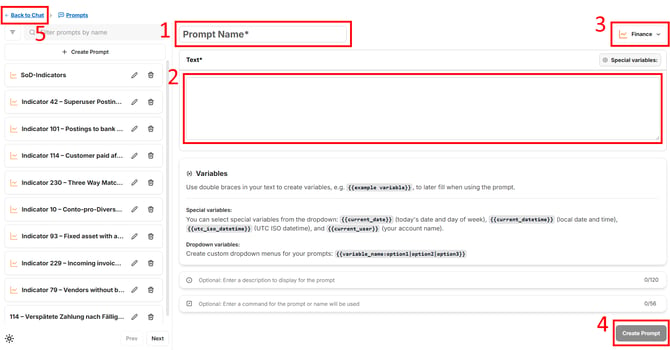
- A form will open, allowing you to fill in different fields. Follow these steps to create and save a new prompt:
- Enter the prompt name
- Enter the prompt text
- Choose a category
- Click "Create Prompt" to save
- Go back to the chat to use your new prompt
If you need support with drafting complex prompts or using variables, we are happy to help. Simply contact your zapliance Customer Success Manager for assistance.
Edit existing prompts
- Open the "Prompts" section as described above.
- Find the prompt you want to edit in the list. You might need to click on "Next" at the bottom to see more prompts.
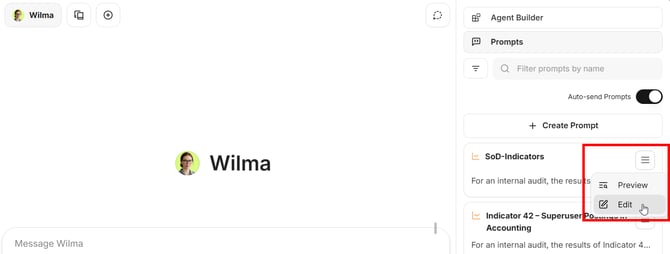
- Click on the three-line menu icon next to the prompt name.
- In the expanding dropdown-menu, click on "Edit".
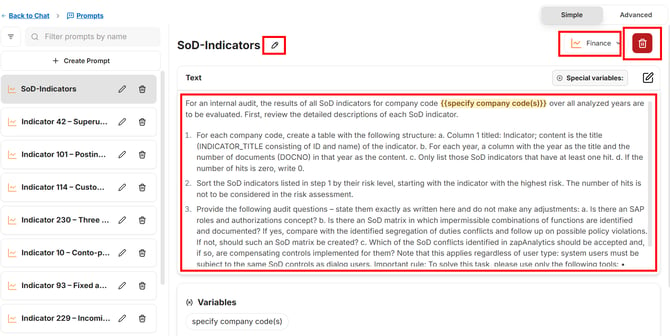
- The prompt form will open, allowing multiple actions:
- Edit the prompt name by clicking on the pencil icon.
- Make sure to Click on "Save" or the disc icon afterwards.
- Edit the prompt text. Changes made here are saved automatically.
- Edit the prompt category. Also saved automatically.
- Delete the prompt by clicking on the trash icon.
- Edit the prompt name by clicking on the pencil icon.
- If you want to edit other prompts as well, just find them in the list and click on them. You might need to click on "Next" at the bottom to see more prompts.
You're all set! To start using your saved prompts, follow these simple steps.