
The prompt library provides a quick and easy way to use your saved prompts. Instead of manually typing lengthy instructions, you can simply call up your templates from the sidebar.
Open the prompts section
-
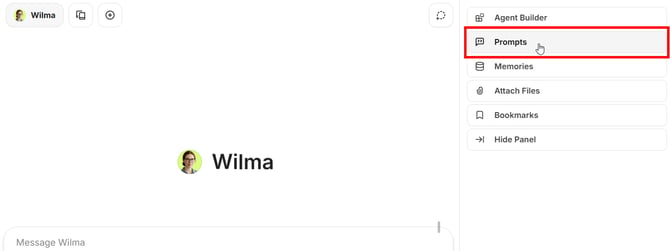
To access the library, navigate to the right sidebar and click on the "Prompts" tab.
-
If you're having trouble finding the tab, the sidebar might still be minimized. Try expanding it by clicking on the arrow in the center-right section of the chat. You will then see the full labels for each tab.
Choose prompting workflow
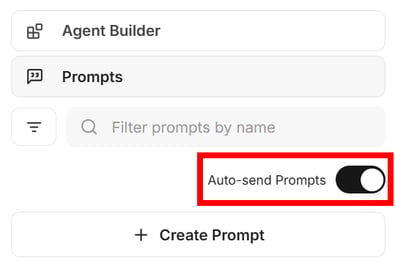
Before starting, decide whether a prompt should be sent automatically. If enabled, clicking on a prompt will instantly trigger a response from Wilma.
-
If you prefer this workflow, simply activate the "Auto-send Prompts" toggle at the top.
-
If you prefer to review your queries first, you can keep this feature toggled off. This way, clicking on a prompt only inserts it into your input box, allowing you to refine the instructions before sending.
Submit a prompt
Follow the steps below to send your prompt, based on whether it contains variables:
Prompt without variables
- Click on the prompt.
- If auto-send is enabled (see above), it will be sent instantly and Wilma will respond right away.
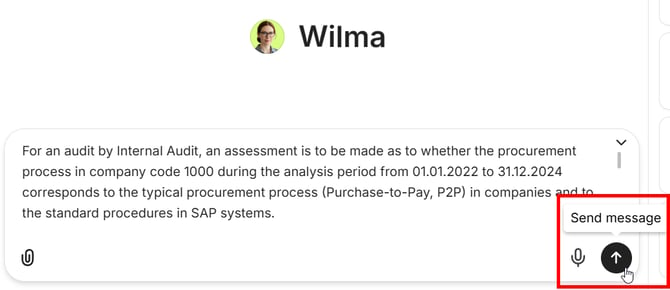
- If auto-send is disabled, it will be pasted into your input box. Make adjustments if necessary and press Enter or click on the arrow to submit.
Prompt with variables
- Click on the prompt.
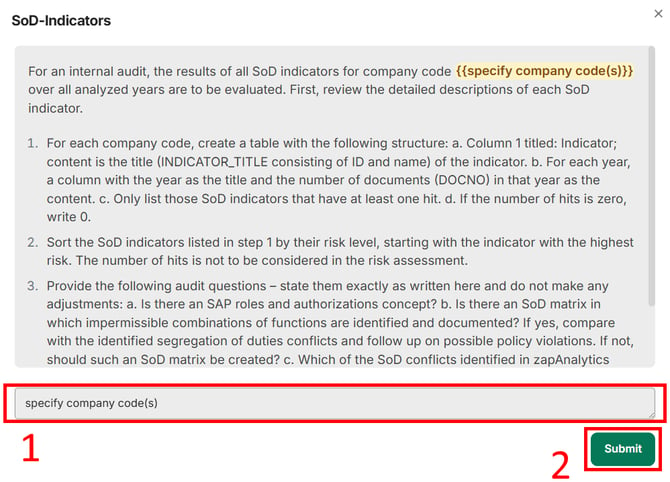
- A pop-up window will appear, highlighting the variables (e.g. "specify company code(s)").
- Enter the desired value into the box below (e.g. "1000").
- Click on "Submit".
Preview prompts
If auto-send is enabled, you can still preview a prompt before sending.
- Click on the three-line menu icon next to the prompt name.
- In the expanding dropdown-menu, click on "Preview".
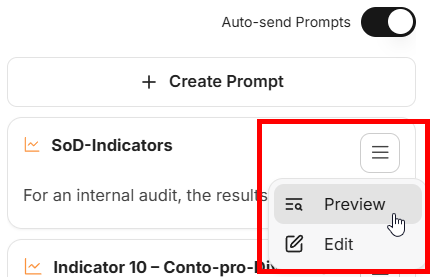
- A pop-up window opens, showing the full prompt text and the variables used.
- You can close the preview by clicking on the x icon in the top-right corner.
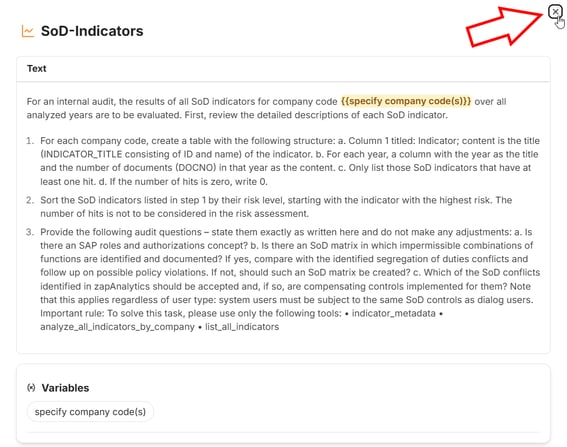
Please note that the preview does not allow you to adjust the prompt before submitting. This can only be achieved by disabling auto-send as described above.
If you want to make general changes to a template, this article describes how to edit prompts in your library.