
This article describes the former setup provided for new customers until the end of May 2026. For the current setup used from June 2026 onwards, please refer to this article.
If you are an existing customer and are uncertain about the setup currently used in your organization, please reach out to your zapliance Customer Success Manager.
1. General Information zapHome OnPrem
zapHome OnPrem is a secure, self-contained platform for operating specialized analysis agents that process SAP data directly within an organization’s own IT environment. The objective is to automatically extract, prepare, and analyze SAP data based on individually selected indicators for risks and opportunities. The solution is deployed via Docker and only requires a connection to the SAP system. All data remains within the organization’s infrastructure at all times, ensuring full control and maximum security.
Analysis results can be flexibly processed further, for example, with Power BI Desktop or in combination with other zapliance tools. This provides a powerful, data privacy-compliant, and customizable solution for SAP data analysis—without any external access to sensitive information.
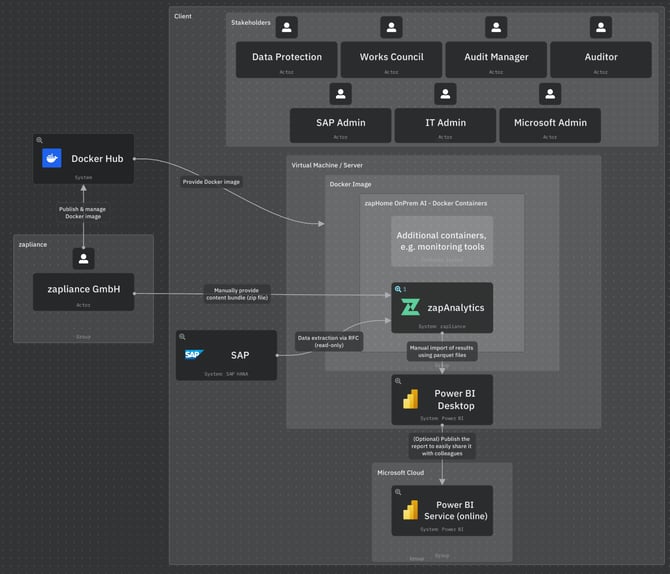
You need to set up the following components to get zapHome alive:
2. Virtual Machine/Server
A dedicated virtual machine (VM) or server that meets the specified hardware requirements is prepared as the host environment for Docker Desktop.
Details can be found in the Knowledge Base article: Setup Guide Virtual Machine / Server
3. Docker Setup for zapHome OnPrem
Before deploying zapHome OnPrem, Docker Desktop is installed on the dedicated server or VM. zapliance publishes and manages its Docker images through official Docker Hub repositories, ensuring access to the latest verified versions.
Details can be found in the Knowledge Base article: Setup Guide Docker
4. Docker Container
Docker containers provide the ability to run applications together with all required components in isolated environments, ensuring consistent and independent operation across systems.
4.1 zapAnalytics
The zapAnalytics software is provided as a Docker container.
Details can be found in the Knowledge Base article: Setup Guide zapAnalytics
4.1.1 RFC User Access
zapAnalytics accesses the SAP system for data extraction via RFC using read-only permissions.
Details can be found in the Knowledge Base article: Setup Guide SAP
4.1.2 Content Bundles
A content bundle wraps all analysis logic into a .zip file. After the relevant company codes, fiscal years, and client information are provided, zapliance generates and shares the content bundle (.zip) via an exchange folder in OneDrive. You must upload the content bundle .zip file in zapAnalytics to create a project.
Details can be found in the Knowledge Base article: Content Bundles
4.1.3 Parquet Files
After data processing is completed, result files specific to each solution are made available for download. The generated Parquet files serve as the foundation for creating Power BI dashboards.
Details can be found in the Knowledge Base article: Setup Guide Power BI Reports
5. Power BI Desktop
Once data extraction and processing are completed within zapAnalytics, the Power BI report templates (.pbit) need to be opened using Power BI Desktop for importing the results from the zapAnalytics result files (.parquet). This will create Power BI reports (.pbix) that are accessible locally by the customer, serving as the basis for the workshop session.
Details can be found in the Knowledge Base article: Setup Guide Power BI Reports
Additional information
Details on data protection, information security and access management can be found in this section.