
This article describes the former setup provided for new customers until the end of May 2026. For the current setup used from June 2026 onwards, please refer to this article.
If you are an existing customer and are uncertain about the setup currently used in your organization, please reach out to your zapliance Customer Success Manager.
1. General Information zapHome OnPrem AI
zapHome OnPrem AI is the secure, local technical platform for all zapliance solutions including modern MCP agents. It is designed to analyze SAP data directly within your organization’s IT environment, ensuring maximum data privacy by enabling seamless integration with your own Azure OpenAI services. All installations are performed on-premise using Docker, so your data always remains within your infrastructure and zapliance never has access to your zapHome instance.
The zapliance agents form an expert team dedicated to SAP data analysis. Specialized agents handle tasks such as SAP data extraction, structured data labeling, and comprehensive risk and opportunity assessments based on the zapliance indicators selected for you. All analysis is conducted exclusively within zapHome and can be flexibly processed further—for example, using Power BI Desktop or through collaboration with other zapliance agents.
Additionally some agents are designed to interact directly with business professionals, understanding your unique business context. Using a chat interface, you can provide instructions to these agents, who independently select and execute the most suitable tools from their toolkit, document the results, and share their insights with you in the chat. While these agents can work together using each other’s outputs, they are also able to function as regular chatbots, leveraging integrated algorithms to answer your questions. As the customer, you retain full responsibility for the final evaluation of results.
With zapHome OnPrem AI, you benefit from a secure, customizable, and collaborative environment for advanced SAP data analysis—fully under your control.
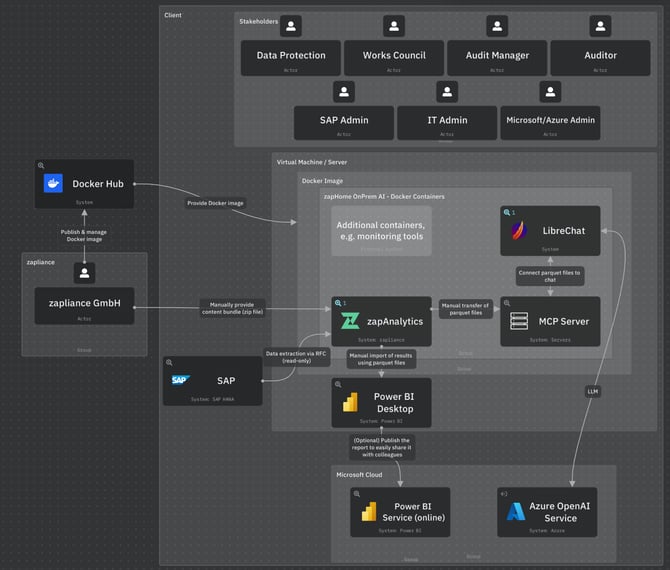
You need to set up the following components to get zapHome alive:
2. Virtual Machine/Server
A dedicated virtual machine (VM) or server that meets the specified hardware requirements is prepared as the host environment for Docker Desktop.
Details can be found in the Knowledge Base article: Setup Guide Virtual Machine / Server
3. Docker Setup for zapHome OnPrem AI
Before deploying zapHome OnPrem AI, Docker Desktop is installed on the dedicated server or VM. zapliance publishes and manages its Docker images through official docker hub repositories, ensuring access to the latest verified versions.
Details can be found in the Knowledge Base article: Setup Guide Docker
4. Docker Container
Docker containers provide the ability to run applications together with all required components in isolated environments, ensuring consistent and independent operation across systems.
4.1 zapAnalytics
The zapAnalytics software is provided as a Docker container.
Details can be found in the Knowledge Base article: Setup Guide zapAnalytics
4.1.1 RFC-User Access
zapAnalytics accesses the SAP system for data processing via RFC using read-only permissions.
Details can be found in the Knowledge Base article: Setup Guide SAP
4.1.2 Content Bundles
A content bundle wraps all analysis logic into a .zip file. After the relevant company codes, fiscal years, and client information are provided, zapliance generates and shares the content bundle (.zip) via an exchange folder in OneDrive. You must upload the content bundle .zip file in zapAnalytics to create a project.
Details can be found in the Knowledge Base article: Content Bundles
4.1.3 Parquet Files
After data processing is completed, result files specific to each solution are made available for download. The generated parquet files serve as the foundation for creating Power BI dashboards.
Details can be found in the Knowledge Base article: Setup Guide Power BI Reports
4.2 LibreChat (Chat interface)
LibreChat is provided as a Docker container by zapliance, which means that a separate installation of LibreChat on your target system is not required.
Details can be found in the Knowledge Base article: Setup Guide LibreChat
4.3 MCP Server (Wilma Agent)
The parquet output files from zapAnalytics serve as input files for the MCP server. Once applied, the MCP server can be selected and connected to the Wilma Agent in LibreChat for further processing and analysis.
Details on LibreChat can be found in the Knowledge Base article: Setup Guide LibreChat Details on zapAgent Wilma can be found in the Knowledge Base article: Agent Onboarding Wilma
5. Azure OpenAI
The use of Azure OpenAI is required for operating LibreChat, as it enables the integration of advanced language models and ensures compliance with enterprise security and data privacy standards.
Details can be found in the Knowledge Base articles:
-
Setup Guide Document Intelligence (depending on the solution)
6. Power BI Desktop (on end-user device)
Once data extraction and processing are completed within zapAnalytics, the Power BI report templates need to be opened using Power BI Desktop for importing the results from the zapAnalytics result files (.parquet). This will create Power BI reports (.pbix) that are accessible locally by the client, serving as the basis for the workshop session.
Details can be found in the Knowledge Base article: Setup Guide Power BI Reports
Additional information
Details on data protection, information security and access management can be found in this section.